Skip to content
Skip to content
Instant Speed Test
Speed Test
Tools

Connection checks

  • Bufferbloat TestCompare latency before and during a transfer.
  • Video Call TestCompare your results with calling requirements.
  • Wi-Fi Room ComparisonCompare manual tests around your home.
  • Connection StabilityWatch HTTP response times and failed requests.

Bandwidth planning

  • Household BandwidthEstimate the capacity your activities need.
  • Streaming BitratePlan upload headroom and stream data use.
  • Download TimeEstimate how long a file transfer will take.
  • Gaming Data UsageEstimate a gaming session's data use.
Explore all tools  →Understand the measurements
Gamer Hub
Guides

Understand your internet

  • Speed BasicsDownload, upload, latency and connection terms.
  • ComparisonsUnderstand network and speed differences.
  • Home NetworksRouters, devices and household connections.

Find practical help

  • Wi-Fi TipsCoverage, interference and everyday improvements.
  • TroubleshootingWork through slow or unstable connections.
  • Gaming GuidesUnderstand lag, ping and in-game network stats.
Browse all articles  →More tips and guides
How We Test
Search

Search the site's published pages and articles.

Category: Troubleshooting

Choose a troubleshooting guide by the symptom you can reproduce. First check whether the issue affects one device or several, Wi-Fi or Ethernet, and one service or many. Then compare results while the connection is idle and while other traffic is active. Those observations are more useful than changing several settings at once. This section covers device-specific slowdowns, unstable wireless connections, upload problems, packet loss and timing variation. Keep notes of when the problem occurs and the changes you make. The selected guides below provide starting points for narrowing the cause before replacing equipment or changing your internet plan.

Compare a slow laptop with a faster phone
Check a slowdown after a Windows update
Investigate packet-loss symptoms
Investigate latency that rises under load

USB Ethernet Adapter Not Recognized in Windows: Identify It First
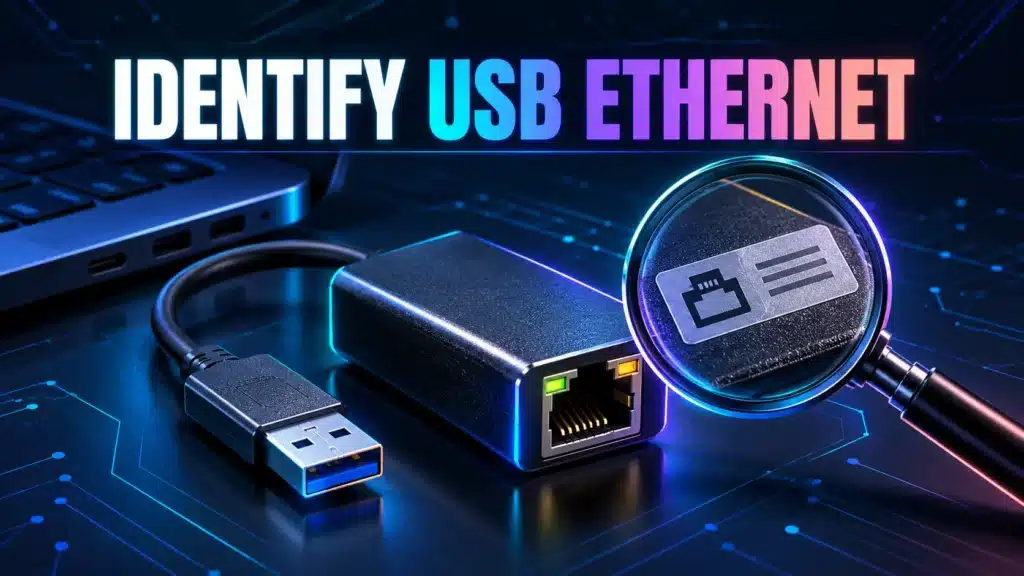
USB Ethernet adapter and identification tag beside a laptop, emphasizing device identification before driver setup.

Separate missing-device, identification and connection problems before installing a USB Ethernet driver, using Microsoft’s supported hardware-ID workflow.

USB Tethering vs Wi-Fi Hotspot: Run a Fair Speed Comparison

The same phone and laptop compare USB tethering with Wi-Fi hotspot sharing without choosing a winner.

Test USB tethering against Wi-Fi sharing without changing phones or carriers. Record conditions and compare repeated runs instead of promising one method always wins.

What a 169.254 IP Address Means on a Windows Ethernet Connection
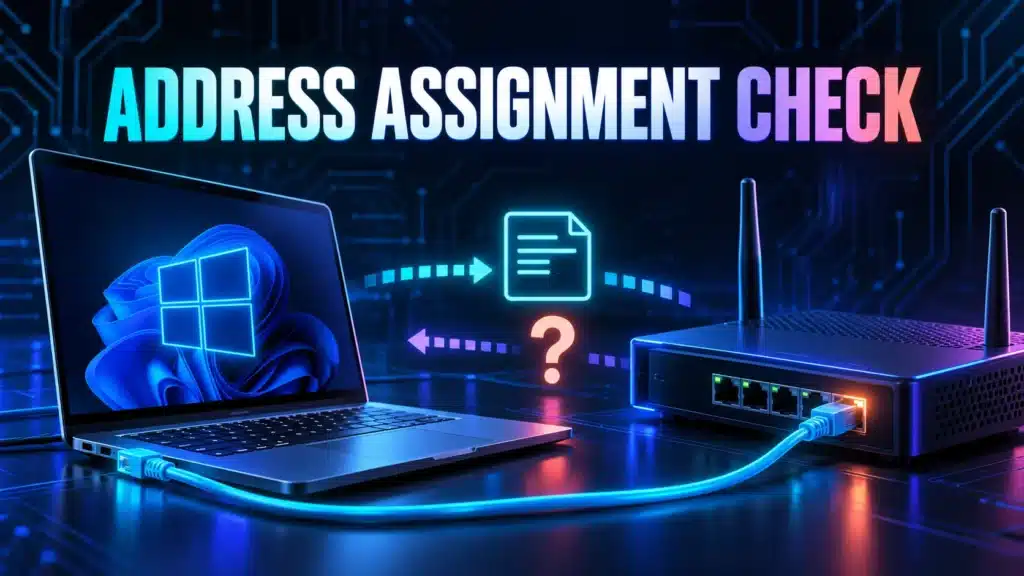
Wired laptop, router and address card illustrating an Ethernet address-assignment check.

Use IPv4 link-local context and labelled ipconfig output to investigate an Ethernet address-assignment problem without guessing static settings or blaming an ISP.

iPhone Hotspot Not Showing on Windows? Check Discovery Before Speed

A phone hotspot beacon and laptop illustrate discovering the connection before testing its speed.

When Windows cannot see an iPhone hotspot, start with discovery and compatibility. A missing connection is a different problem from a slow connected hotspot.

Speed Test Upload Shows Zero or Unavailable: What to Check

Conceptual transfer result card with an unfilled upload field, distinguishing an unavailable result from zero speed.

Learn why zero, unavailable, stopped and completed-low upload results need different interpretations, then collect a focused support report without inventing a speed.

Roku Check Connection: Read Signal Quality and Download Speed Separately

A television shows separate Wi-Fi signal and download symbols beside a playback observation.

Use Roku’s own connection check, record the app symptom and compare one change. Signal quality, download throughput and successful playback answer different questions.

Read Windows PathPing Results Without Blaming a Silent Router

A route diagram separates an intermediate router diagnostic reply from traffic reaching the destination.

A loss figure beside one router does not prove it drops your application traffic. Read the complete PathPing output and compare later hops and the destination.

Compare IPv4 and IPv6 Connectivity in Windows Without Disabling IPv6

Parallel IPv4 and IPv6 routes connect the same computer and service for a paired connectivity check.

Compare IPv4 and IPv6 reachability to the same named service. A failed probe needs interpretation; it does not justify disabling IPv6 across your network.

Mac Wireless Diagnostics: Collect a Report Without Resetting Wi-Fi

Laptop, Wi-Fi router and archive document representing collection of a wireless diagnostic report.

Use Apple’s built-in Wireless Diagnostics workflow, review its summary and share an appropriately scoped report without treating a log entry as a complete diagnosis.

How to Read Microsoft Teams Call Health During a Bad Meeting

A meeting laptop and separate audio, video and sharing tiles illustrate checking call health.

Teams Call health describes the current meeting, not your ISP plan rate. Read direction and units, capture the symptom and make one controlled comparison.

Next →
Instant Speed Test

Practical internet diagnostics, connection tools and clear guides to help you understand your network.

How our measurements work  →

Tools

  • Internet Speed Test
  • Bufferbloat Test
  • Video Call Test
  • Wi-Fi Room Comparison
  • Household Bandwidth
  • Explore all tools →

Guides

  • Speed Basics
  • Wi-Fi Tips
  • Troubleshooting
  • Home Networks
  • Gaming Guides
  • Recent articles →

Explore

  • Gamer Hub
  • About
  • Contact
  • How We Test
  • All pages

© 2026 Instant Speed Test. Built by Ahmad Raza.

Privacy Policy Terms of Service XML sitemap