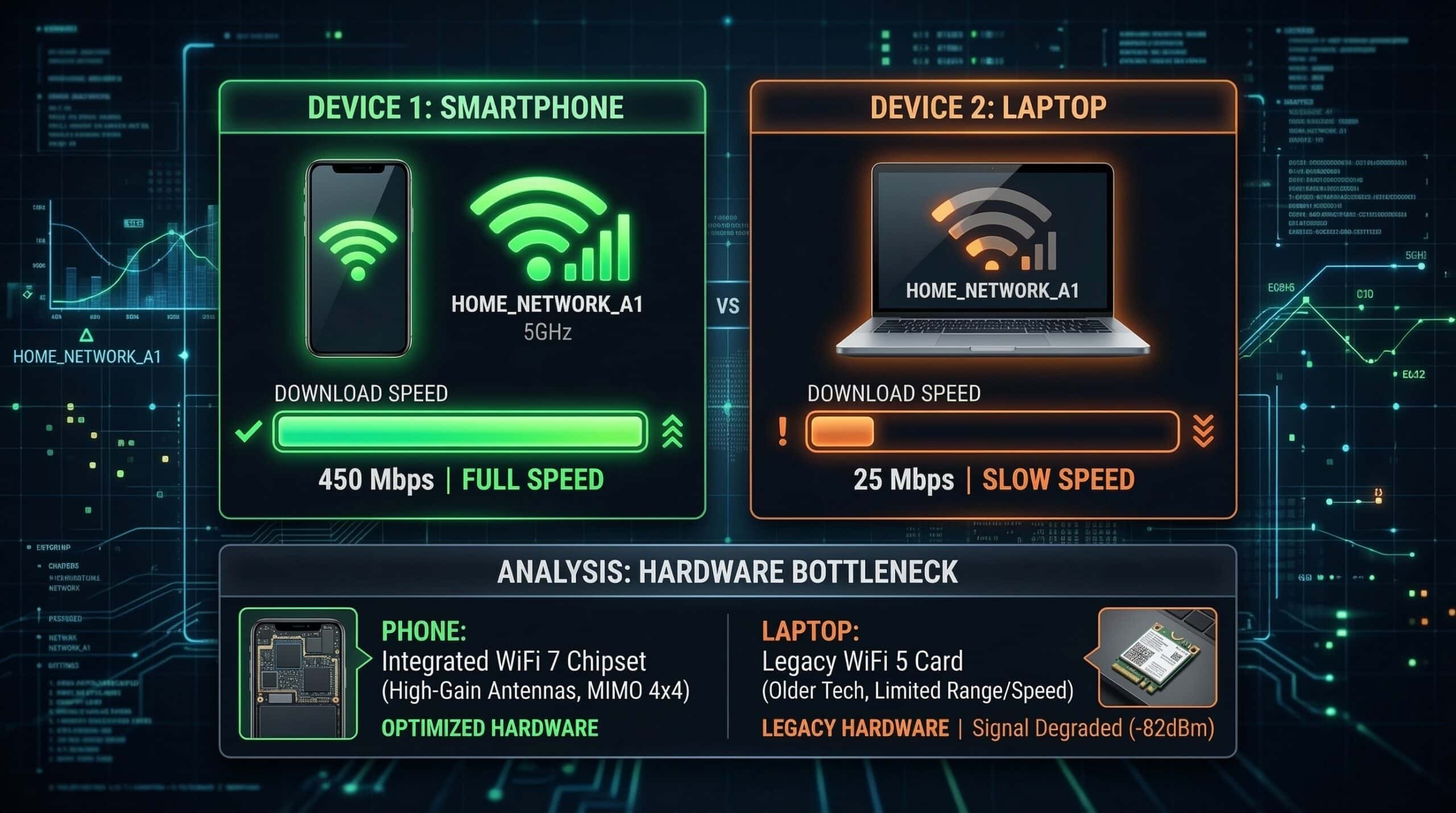
WiFi Slow on Laptop But Fast on Phone — Causes and Fixes
A fast phone and a slow laptop do not prove that the laptop’s adapter is faulty. The devices may use different Wi-Fi bands, access points, radio capabilities, VPN routes or background transfers. Start by comparing them near the same router, on the same home connection, one at a time. If only the laptop remains slow under those conditions, investigate its link speed, driver and power state.
Run a fair comparison · Choose the next check · Copy a blank device log
First, Run a Fair Laptop and Phone Comparison
- Use the same location and connection. Place both devices near the main router. Confirm both use home WiFi, rather than a guest network or mobile data. On a mesh network, check which access point serves each device.
- Remove competing transfers. Pause your own cloud backups, game downloads and streaming. Plug the laptop into power. Record whether either device uses a VPN or proxy so you do not mistake a different route for a WiFi difference.
- Run the same test, one device at a time. Open the Instant Speed Test on both. Alternate phone and laptop for three runs each; use the same server if a selector is available. Simultaneous tests compete for bandwidth.
- Record the conditions. Note download, upload, time, connected band and laptop link speed. Compare the middle result from each set rather than choosing the single highest number. Change one setting and repeat.
Also check the units. A download application showing 25 MB/s is transferring about 200 Mbps before allowing for overhead. Our Mbps vs MBps explanation covers the difference; the download time calculator turns a measured rate into a file-transfer estimate.
Choose the Next Check: Laptop Slow, Phone Fast
| What you observe | What to check next | Useful first action |
|---|---|---|
| Laptop uses 2.4 GHz; phone uses 5 GHz or 6 GHz | Check the connected band in device properties or the router app; the network name alone is insufficient. | If supported, compare the laptop on 5 GHz near the router. |
| Laptop improves substantially near the router | Signal, obstacles and its selected mesh access point. | Retest in the normal room to confirm a coverage problem. |
| Only the laptop remains slow nearby | Adapter model, negotiated link speed and manufacturer driver. | Check the laptop maker’s support page for a compatible driver. |
| The slowdown follows sleep or battery use | Repeat on mains power and check adapter power settings. | Test a supported power setting, then compare again. |
| WiFi test is fast but one application is slow | Units, app limits, remote server and simultaneous transfers. | Compare another download source before changing WiFi settings. |
| Both devices slow down in the same test period | Other network use, router load and the internet connection. | Compare a wired test and repeat at another time. |
The Band Mismatch — Check the Actual Connection
5 GHz generally offers more throughput nearby, while 2.4 GHz reaches farther and handles obstacles better. 6 GHz requires compatible equipment and has a shorter useful range. Neither device type always chooses a particular band, and moving everything to a higher band is not a universal fix. See our 2.4 GHz vs 5 GHz guide.
In Windows 11, open Settings → Network & internet → Wi-Fi → your connected network’s properties and read Network band (channel). A shared network name can cover several bands. Check the router’s connected-device page if your phone does not show its current band.
Check your router’s guidance before changing band steering or network names. Apple recommends one consistent network name across bands for its devices.
Read Link Speed Without Confusing It With Internet Speed
Link speed describes the wireless connection negotiated between the laptop and router, rather than the internet throughput your browser measures. Actual transfers also face wireless overhead, interference and other bottlenecks; there is no fixed percentage every laptop should achieve.
- Windows: check the connected network’s properties for receive/transmit link speeds. Alternatively, open Control Panel’s Network and Sharing Center, choose Change adapter settings, double-click Wi-Fi and read Speed.
- Mac: hold Option while clicking the Wi-Fi menu and inspect the connection details, including Tx Rate where available. For further checks, choose Open Wireless Diagnostics.
A low link rate that improves nearby points toward the local wireless connection. A high link rate with slow internet still leaves the router, ISP, VPN, browser and test server to investigate.
Drivers, Power and Background Apps
In Windows Device Manager → Network adapters → your adapter → Properties → Driver, compare the version with the laptop manufacturer’s supported driver. Install a compatible update, restart and retest. If an update triggered the slowdown, check the maker’s recovery advice.
For problems following sleep or battery use, check Properties → Power Management → Allow the computer to turn off this device to save power. Microsoft documents testing with this unchecked. Record the original setting and restore it if unhelpful; some laptops do not expose the tab.
Check Task Manager’s Network column for active transfers and pause apps you recognise. A metered connection mainly changes how Windows and some apps use data; it is not a general WiFi speed boost switch. Keep security software enabled and use its vendor’s troubleshooting guidance if you suspect a filtering issue.
Keep a room-by-room comparison without changing the test
Use the Wi-Fi room comparison to record tests from the same device near the router and in the room where the laptop is slow. Add the connection band or link speed manually if your operating system exposes it; the browser cannot read those hardware details for you. Compare one device at a time, and keep the VPN, power state and background-transfer conditions consistent.
If the actual problem is a meeting, the video-call connection check adds a browser baseline. If delay rises mainly while someone transfers files, compare idle and loaded HTTP timing. These are separate diagnostic views, not proof of a particular adapter, router or ISP fault.
Blank Laptop and Phone Comparison Log
Copy the template below and fill one line for each run. It is a worksheet, not measured evidence from this article. Keep the same test service, location and conditions, then change one condition at a time.
| Record for each device | Why it matters |
|---|---|
| Date/time, room, device and browser | Prevents comparing different conditions as if they were simultaneous. |
| Wi-Fi band, access point and link speed, when your OS/router exposes them | The same network name can serve different radio connections. Record these manually; the browser cannot infer them reliably. |
| VPN/proxy, laptop power state and active transfers | These can change the route or compete for resources. |
| Download/upload Mbps, HTTP latency and any unavailable result | Preserves each outcome rather than selecting only the best number. |
| One changed setting and the repeated result | A repeatable improvement is a troubleshooting lead, not proof that every other cause is excluded. |
A phone using mobile data or a laptop connected through a VPN is not a like-for-like Wi-Fi comparison. If both are slow near the router, use a baseline internet speed test and widen the checks. If the difference appears mainly between rooms, use the existing room comparison tool.
Frequently Asked Questions
How do I update my laptop’s WiFi driver?
Use Windows Update or your laptop maker’s official support page for the exact model. Record the current version first. On a Mac, keep macOS updated.
Should I buy a USB WiFi adapter for my laptop?
Consider one after a controlled test identifies the internal adapter or its capabilities as the limitation. Check operating-system drivers, supported bands, USB connection and router compatibility before buying. An adapter will not fix a slow ISP connection or a remote download server.
My laptop is faster on Ethernet than WiFi — is that normal?
It can be. Ethernet removes the wireless hop, making it a useful comparison, but its ports, cable and adapter can also limit speed. If wired performance is good while WiFi remains slow, investigate the laptop’s wireless connection. If both are slow, widen the checks. See our wired vs wireless comparison.
Related Guides
- 2.4 GHz vs 5 GHz WiFi
- Internet Slow Only on One Device
- How to Fix Slow Internet on Windows 11
- Why Speed Tests Differ on Different Devices
- WiFi 6 vs WiFi 5
Official Troubleshooting Sources
- Microsoft: Wi-Fi connection troubleshooting and Wi-Fi bands and home layout
- Microsoft: Wi-Fi capabilities and connected band and metered connections
- TP-Link: checking negotiated Wi-Fi link speed
- Apple: Wireless Diagnostics and recommended router settings
Record the device comparison before changing your setup
Use the blank device-comparison worksheet to alternate laptop and phone runs in the same room. Record Wi-Fi band and VPN use when known, keep incomplete outcomes, and change one condition at a time. For repeated tests on one device, the internet speed test offers explicit local saving, setup labels and a downloadable support report.