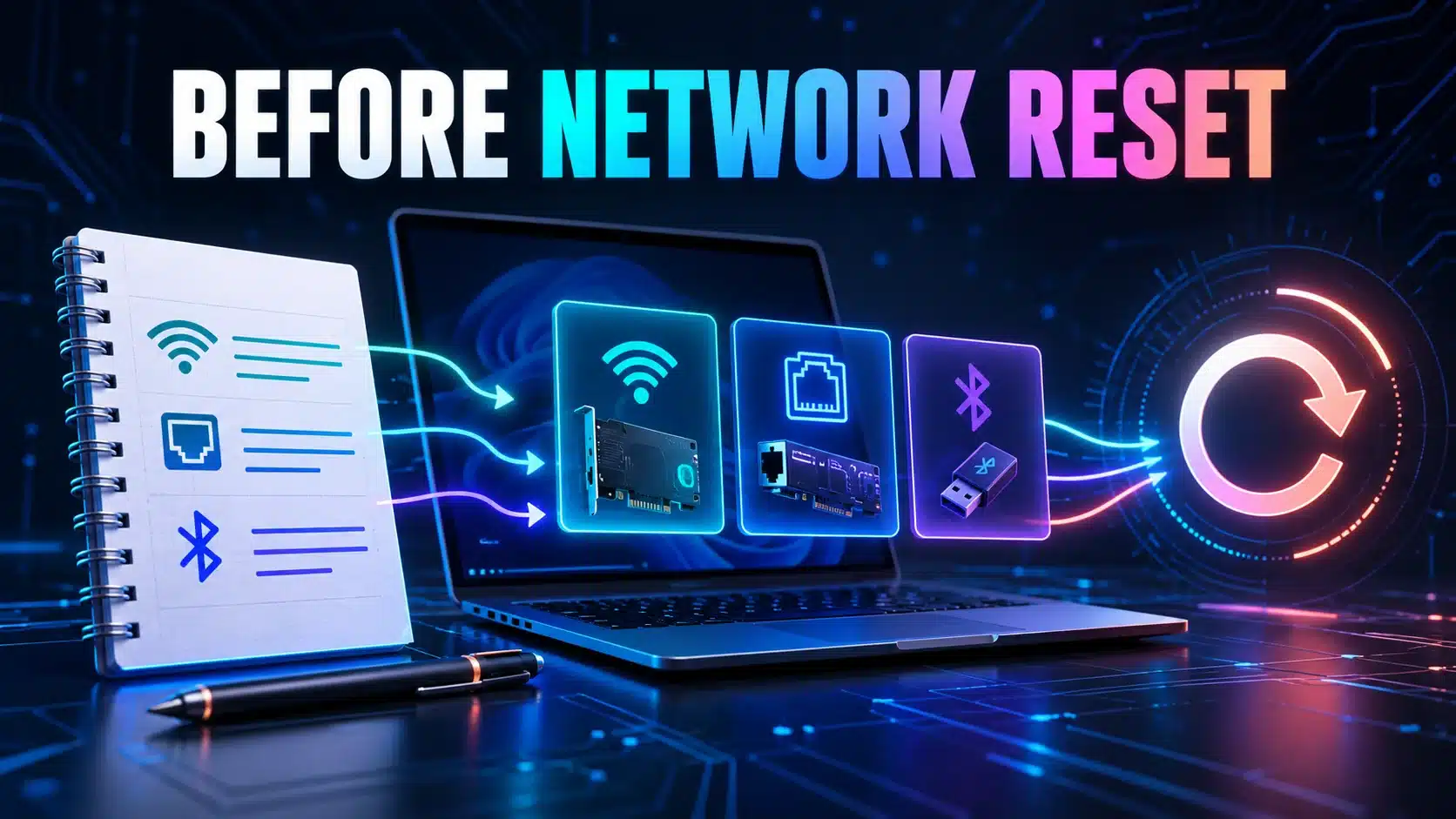
Windows Network reset removes installed network adapters and their settings, then reinstalls adapters with defaults after a restart. It is a consequential troubleshooting step, not a routine way to make a working connection faster. Understand your recovery needs before selecting it, especially if you depend on a VPN, virtual networking or an organisation-managed configuration.
Microsoft places Network reset near the end of its Windows connection troubleshooting guidance. The same guidance warns that networking software may need reinstallation or setup afterwards and that network profiles may become public. Those details are more important than a promise that a reset will fix everything.
Decide whether the problem belongs to this computer
Write down what fails before changing anything: joining Wi-Fi, opening every website, reaching one work resource or transferring a particular file. If another device has the same failure on the same network, resetting this computer is a poorly targeted first response. Compare the shared service or network before discarding the computer’s configuration.
If the issue affects one browser or one app, note that boundary too. A connection that supports other ordinary activity calls for a narrower comparison. Our Windows 11 troubleshooting guide offers a broader starting point; the purpose of this article is to assess the reset itself.
Save a recovery checklist before you disconnect
Prepare the information needed to reconnect through authorised settings. Keep it locally accessible because an online-only instruction page is not helpful if the reset leaves you offline. Do not put passwords into screenshots or an unprotected support message.
- Record the computer and adapter models, Windows version and the symptom you are investigating.
- Confirm how you normally join the network and that you have authorised access to its credentials if needed.
- Identify VPN or virtual-networking software you rely on and where its approved installer and setup instructions are available.
- Record any configuration your administrator says must be preserved or restored. Do not copy another computer’s static address as a substitute.
- Arrange a workable recovery connection or another device for reading instructions, when available.
- Save your work and choose a time when a restart and a temporary loss of connectivity will not interrupt something important.
On a work or school computer, send that checklist to IT first. A user-visible reset button does not mean that replacing a managed configuration is the right fix. The administrator may prefer a specific repair or may need to restore software afterwards.
Separate Network reset from other operations
Restarting Windows, restarting a router, forgetting one Wi-Fi network and using Network reset are different actions. They affect different parts of the setup. Name the operation you performed in your notes instead of writing “reset everything,” which makes subsequent behaviour difficult to interpret.
Even command-line resets have narrower definitions. Microsoft’s netsh winsock reference describes a Winsock catalogue reset, rather than removal of every network adapter. It is not an interchangeable spelling of the Settings operation. Do not paste a bundle of reset commands merely because a web page puts them beside one another.
The distinction matters when you need to explain an outcome. If a restart alone restores access, record that result before adding a reset. If forgetting a single network is the relevant supported step, understand the credentials and effect of that operation separately.
If you proceed, use the supported Windows path
In Windows 11, Microsoft’s instructions use Settings → Network & internet → Advanced network settings → Network reset. Read the confirmation before selecting Reset now, then allow the restart. Follow the instructions appropriate to your installed version rather than assuming an older screenshot matches your computer.
Afterwards, verify ordinary connectivity before reinstalling or changing several things. Check the intended network, an ordinary website and the original failing task. Restore required networking software through its supported setup. Review the connection’s network profile if local discovery or sharing behaves differently; do not change a public network to private just to remove an inconvenience.
If the original issue involved a connection with no internet access, compare that exact symptom again. A new adapter name or a successful Wi-Fi association alone does not demonstrate that the original problem is resolved.
Judge the outcome against the original question
A different speed-test result after a reset is not enough to prove the reset increased capacity. The test time, background activity and destination may have changed too. Repeat the ordinary task and compare like-for-like observations. If you run a bandwidth test, keep its method and conditions recorded.
If the reset does not help, avoid repeating it immediately. Keep the before-and-after symptom, any restoration steps and the precise operation used. A support person can do more with that sequence than with several resets and no record of the intermediate state.
If it helps temporarily, record when the problem returns and what changed in between. That pattern may be valuable without proving that one application or update is responsible. Stop at the evidence you have: Network reset is a tool for a specific local configuration problem, and its success or failure does not certify the router, ISP or remote service.