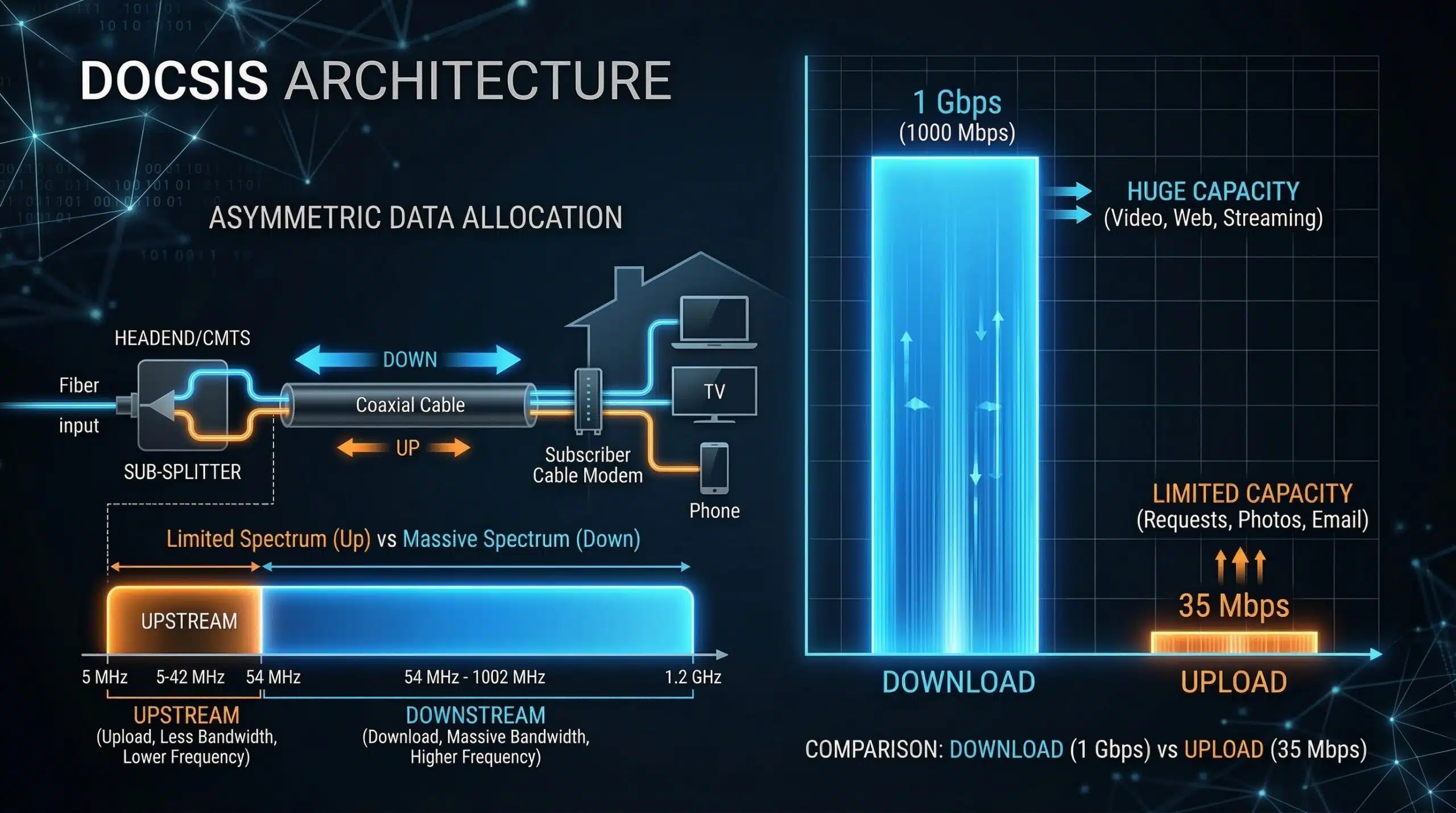
Upload can be slower than download because your plan provides less upstream capacity, but a low upload result is not automatically normal. First compare it with your plan’s stated upload speed. Then use the same device, test route and connection conditions to separate a service limit from Wi-Fi, competing uploads or one slow application.
This guide diagnoses the difference. If you already know the bottleneck, use the upload-speed improvement checklist. To decide whether your available upload is enough, see upload requirements by activity.
1. Check whether the difference matches your plan
A plan advertised as “300 Mbps internet” may have a much smaller upload allowance. Find the current plan details, account page or provider’s broadband label and look for upload separately. The FCC’s broadband-label fact sheet shows why speed, data allowance and network-management information should be checked together when comparing US services.
Illustrative comparison: on a plan specified as 300 Mbps down and 15 Mbps up, a repeatable 14 Mbps upload is a different problem from a repeatable 2 Mbps upload. The first may be near the plan’s intended upstream capacity; the second deserves investigation. These numbers are examples, not measurements from a provider or a promise about acceptable performance.
Do not calculate an expected upload simply by dividing download speed by ten. Cable, DSL, fiber, fixed wireless and mobile plans have different configurations. Some are symmetric; others are not. The access technology gives context, while the actual service description defines what you are buying.
Why cable and fiber labels need a closer look
Cable networks can allocate different capacity to upstream and downstream traffic. That helps explain many asymmetric plans, but it does not establish one universal cable upload ceiling. Network upgrades and local availability matter. CableLabs describes DOCSIS 4.0 capacity of up to 10 Gbps downstream and 6 Gbps upstream; those specification figures are not speeds automatically available to every cable customer.
Likewise, “fiber” does not replace checking the order details. Confirm both directions, equipment requirements and the upload offered at your address. Buying a new modem or paying for a faster download tier may achieve little if the provider has not changed your upload service.
2. Create a quiet, same-device baseline
Use the device that has the problem. Keep it plugged into power if a long transfer would otherwise stop when it sleeps. Choose a time when household members can briefly pause nonessential transfers. Do not compare a phone on Wi-Fi with a desktop on Ethernet and assume the difference belongs entirely to the ISP.
- Note the plan’s stated upload and the time. Record whether you are using Ethernet, Wi-Fi or a VPN.
- Pause cloud backups, photo synchronization, game broadcasting and other uploads you control. Resume them after the comparison.
- Run a small set of manual download and upload tests using the same mode and device. Read the data-use notice, especially on a metered connection.
- Repeat on Ethernet through the router when practical. Otherwise compare the same device near the router with its usual room.
- Change one condition at a time. Keep the result and the observation, rather than choosing only the highest number.
A router’s own built-in speed test may omit the Wi-Fi link to your device. Google’s documentation explicitly describes its Nest or Google Wifi test as a router-to-server measurement. That can be a useful additional comparison, but it is not interchangeable with a browser test from a distant room.
3. Match the result to the next investigation
| What you observe | What it suggests | Useful next step |
|---|---|---|
| Quiet wired results are close to the plan’s upload | The upstream service may be the practical limit | Compare your simultaneous needs with that capacity |
| Ethernet is consistently better than the same device on Wi-Fi | The local wireless path deserves attention | Compare location, band and the router connection |
| Upload improves when synchronization is paused | Applications were sharing the upload | Review their schedules or bandwidth settings |
| One application is slow while other uploads are healthy | The destination or application may be limiting that job | Check its status, queue and upload settings |
| Several wired devices show the same new reduction | A shared router, access link or external route may be involved | Check service status and collect repeatable evidence |
For a room-specific difference, use the Wi-Fi room comparison to keep the task organized. Its browser measurements do not scan radio channels or prove signal strength. A location pattern is evidence to investigate, not a diagnosis of a particular component.
If upload is adequate when idle but calls stall during backups, capacity and queueing are separate questions. A loaded-latency comparison can show how the tested HTTP route changes under the tool’s load. It cannot report the actual packet loss or ping of your meeting server.
4. Distinguish a slow connection from a slow file job
A file manager may display MB/s while a speed test displays Mbps. Eight bits make one byte, so 10 Mbps corresponds to a full-rate equivalent of 1.25 MB/s before additional work. A low-looking number may simply use a different unit. Use the download and upload time calculator with the size and unit your application actually shows.
Also separate “sending bytes” from preparing, checking or processing files. A directory containing many small files can behave differently from one large file of the same total size. An upload service may be busy even when a speed-test destination is not. Repeating different speed tests does not establish which stage is holding up that particular job.
Review an application’s own limit before changing the router. For example, Dropbox documents custom bandwidth settings in its desktop preferences. A deliberately limited client can upload slowly on an otherwise healthy connection.
5. Save evidence that support can use
Keep a short log: date and time; device; wired or wireless; test destination or application; VPN state; other traffic paused or active; upload result; and the real symptom. Include comparable quiet and busy periods if the issue varies with time. Do not post account numbers, public IP addresses or diagnostic archives in an open forum.
Ask your provider to confirm the upload provisioned for the account and whether a local service issue is known. A useful report says, “The same wired laptop was below the stated upload on these occasions,” rather than, “Download is ten times faster, so the line must be broken.” If the measured service matches the plan but cannot cover your activities, that becomes a capacity-planning decision.
Upload-diagnosis questions
Does a good download result rule out an upload problem?
No. The two directions have separate demands and can behave differently. Compare both with the plan and the affected activity instead of using download alone as a health certificate.
Does a faster VPN result prove throttling?
No. A VPN changes the route and other conditions. A difference is worth recording, but does not identify the reason. On a managed device, follow your organization’s rules and ask IT before changing the required connection.
Will changing DNS make a large upload faster?
DNS is relevant to finding a service, but changing a resolver does not increase your subscribed upload capacity. Diagnose a slow start separately from the sustained rate after the transfer begins.
Reviewed 27 October 2026. The comparisons above are a diagnostic workflow. No hands-on benchmark, provider-wide finding or measured improvement is claimed.