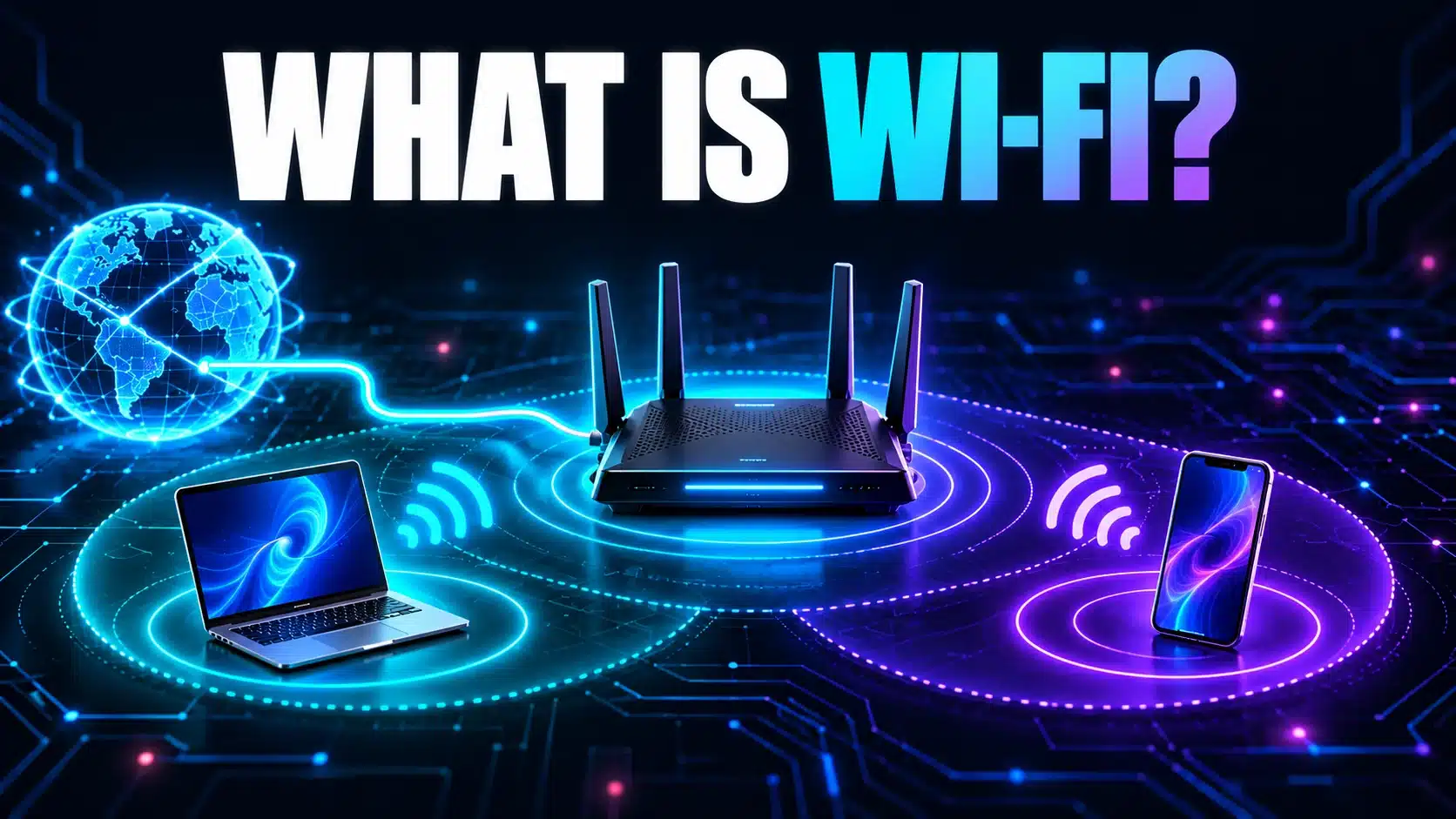
Wi-Fi is a way for devices to communicate over a local wireless network. Your phone, laptop, printer or camera can use it to reach a nearby access point. If that network also has a working internet connection, the device can reach internet services through it.
Wi-Fi and internet are related, but they name different parts of the connection. Understanding that difference explains several everyday puzzles: full Wi-Fi bars with slow websites, a printer that works during an internet outage, or a phone that says “connected, no internet.”
Does Wi-Fi stand for Wireless Fidelity?
No. Wi-Fi is a brand name, not an abbreviation that expands to “Wireless Fidelity.” Cisco’s Wi-Fi explanation makes that distinction and describes Wi-Fi networking based on IEEE 802.11 standards. Calling it Wireless Fidelity can be familiar shorthand, but it is not the meaning of the name.
For practical use, remember the function rather than an invented expansion: Wi-Fi provides a wireless link within a local network. It does not, by itself, include a broadband subscription, mobile data allowance or a guarantee of outside connectivity.
Where Wi-Fi sits in a home connection
A common home internet path looks like this:
- Your device connects over Wi-Fi to an access point.
- Your home router connects the local network to the provider’s service through the appropriate equipment.
- The provider and other networks carry traffic to the website or service.
- The response travels back to your device.
Several roles may live inside one box, so the equipment can simply be called a Wi-Fi router or gateway. They are still different jobs. A wireless access point provides local radio connectivity; a router moves traffic between networks. The provider-facing equipment varies with the service, such as an optical terminal for some fiber installations.
| Term | What it describes | What it does not establish |
|---|---|---|
| Wi-Fi | A local wireless network link. | That the network has working internet access. |
| Internet service | Access to external networks through a provider. | That every room has a strong local wireless connection. |
| Ethernet | A wired local-network connection. | That the provider or destination cannot be slow. |
| Cellular data | A mobile-network connection, such as a phone’s data service. | That the phone is using home Wi-Fi. |
| Hotspot | A way to share a connection locally, often using Wi-Fi. | That the upstream connection is unlimited or free. |
A phone hotspot illustrates the distinction: a laptop can connect to the phone over Wi-Fi while the phone reaches the internet over cellular data. The local link and the upstream service use different technologies.
Wi-Fi 6 does not mean 6 GHz
A Wi-Fi generation number and a radio frequency are different labels. Wi-Fi 6 can operate in the 2.4 GHz and 5 GHz bands. Wi-Fi 6E extends the relevant capability into 6 GHz; Wi-Fi 7 can also support 6 GHz. The band you can actually use depends on the access point, client, software and local rules.
Intel’s band-support explanation describes those compatibility requirements. Buying a 6 GHz-capable router does not add that capability to a client that lacks it. Also, a “5G” suffix in a home network name commonly labels a router’s 5 GHz network; it does not prove that the internet service uses cellular 5G.
Network names are chosen by administrators, so a name alone is not a reliable hardware specification. Check the router and device documentation for the actual supported generation and bands. Our Wi-Fi 7 versus Wi-Fi 6 guide examines the upgrade decision in more detail.
Why full Wi-Fi bars can still mean slow internet
The Wi-Fi indicator describes the local wireless connection in the way your device chooses to display it. It does not measure every link between you and a website. Your provider could be interrupted, another activity could be using the available capacity, or the destination could be slow while the nearby wireless connection remains strong.
Likewise, a slow browser download does not by itself identify the radio as the problem. To investigate, keep the same device and compare a few locations with similar household activity. Record what changed. The Wi-Fi room comparison tool helps arrange internet-throughput observations, but it cannot read radio signal strength or scan channels from your browser.
Use our internet speed test to establish what the current device can transfer on the tested path. Read the measurement method before interpreting the result: it tests HTTP traffic to Cloudflare, rather than measuring your router’s maximum radio speed or all possible destinations.
What “connected, no internet” means
This message usually means the device has joined the local network but has not established the outside connectivity it expects. Microsoft’s Windows connection troubleshooting guide distinguishes local-network access from internet access. The message is a starting point, not a diagnosis of a particular failed component.
- Check the scope. Does another device on the same network reach a normal website? Does the affected device work on another trusted connection?
- Check the intended connection. Confirm the network name. A phone using cellular data can make it look as though the same Wi-Fi network works when it has silently changed paths.
- Check any legitimate sign-in step. A hotel or public network may require its normal captive-portal login. Confirm the network’s identity with its operator before entering information.
- Check equipment and service status. Look at the router or gateway’s documented indicators and the provider’s outage information. Avoid repeated resets that erase configuration.
- Escalate with useful observations. Tell support which devices are affected, when it began and what their indicators show.
For a broader decision tree, use the slow-internet troubleshooter. Do not disable security protections or share your Wi-Fi password publicly to make a connection work.
Set up a network that fits the devices you own
Use the equipment’s supported security configuration and a strong, unique network password. Microsoft’s wireless-network setup guidance recommends WPA3 when the router and client support it. Check compatibility and follow the manufacturer’s update instructions rather than weakening security for the entire household.
Place the access point where it can serve the rooms that need it, using the manufacturer’s installation guidance. Then verify those rooms with your own devices. The number printed on a router box is not a forecast of internet throughput in a particular bedroom.
Finally, separate local coverage from household capacity. The household bandwidth calculator helps plan simultaneous internet activities; it does not measure radio coverage. Decide whether the problem is reaching the access point, reaching the internet, or supporting several activities at once before buying equipment or a faster plan.
Reviewed on 27 October 2026. Device support, interface wording and regional availability of radio bands can change.