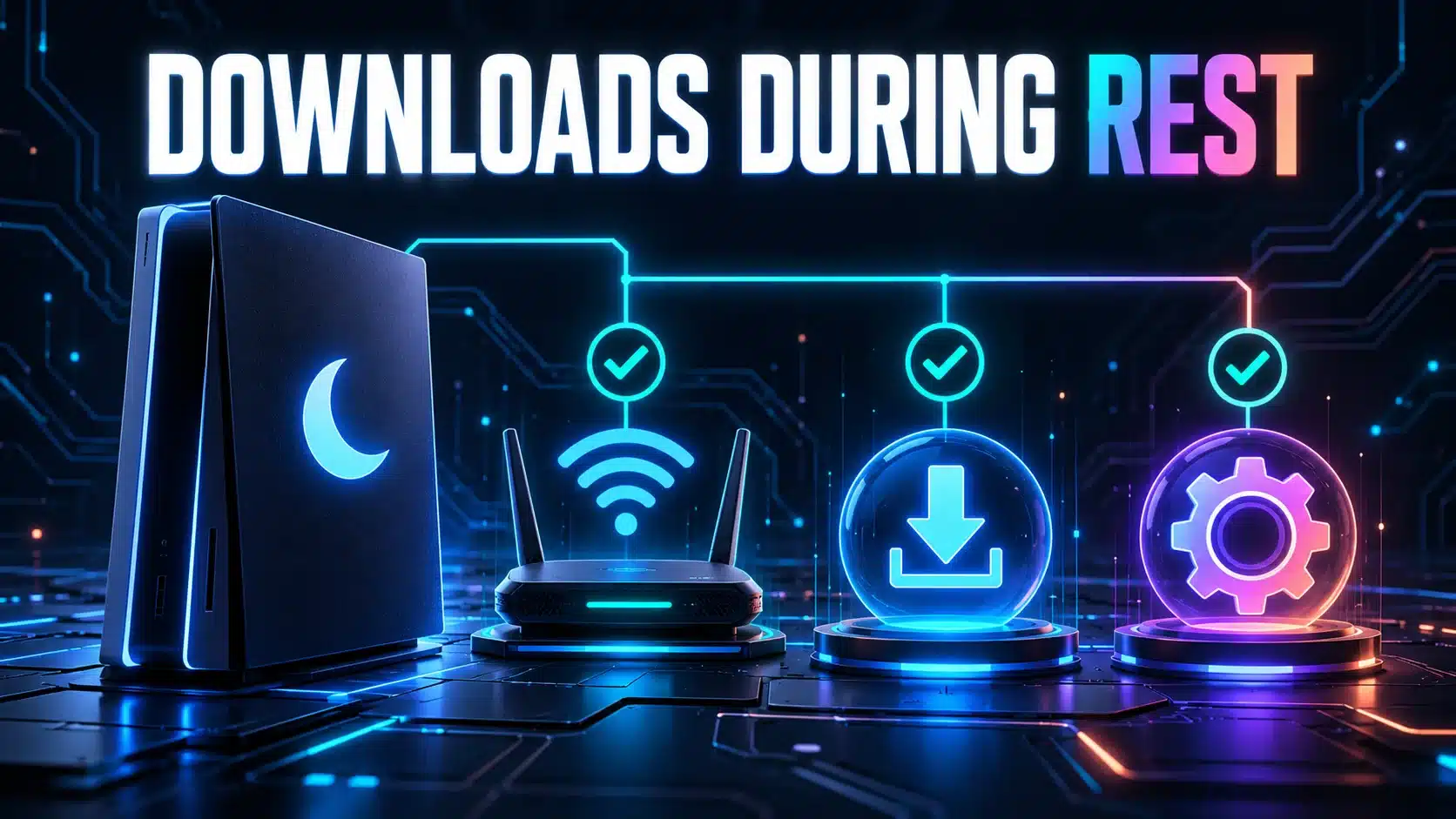
If a PS5 download stops when the console enters rest mode, check its rest-mode internet setting and automatic-update choices before assuming the broadband connection is slow. Downloading an update and installing it are separate stages, and a suspended game can affect which automatic action you want the console to take.
Start by finding the stage that stopped. “The download did not begin,” “the bytes stopped advancing” and “the update downloaded but did not install” are different observations. Preserve any error message and use the matching branch below.
Check the three controls separately
Sony’s automatic-download and update guide lists rest-mode internet access separately from game auto-download and auto-install settings. On supported current PS5 software, review these areas:
- Rest-mode internet: Settings, System, Power Saving, Features Available in Rest Mode, then Stay Connected to the Internet.
- Game updates: Settings, Saved Data and Game/App Settings, Automatic Updates. Review Auto-Download and Auto-Install in Rest Mode as distinct choices.
- System software: Its automatic download and installation choices are in the system-software update settings, rather than the game-update menu.
Menus can move with console updates. If the wording differs, use Sony’s current guide for your console software. Do not change unrelated power options simply to make a screenshot match an older tutorial.
Decide what should happen to a suspended game
Sony distinguishes downloading an update from automatically installing it when you want to keep a game suspended. Its guide explains that choosing auto-download alone allows the files to arrive while leaving the installation decision until you resume. That is a different outcome from an update failing to download.
Before a comparison that closes software or installs an update, save your progress and consider anyone else using the console. Do not treat automatic installation as an unconditional improvement. The right setting depends on whether unattended updating or preserving the current session matters more to you.
Compare an awake download with a rest-mode download
- Choose an available download or update and note its state while the console is awake. Record received progress, the connection type and any error.
- Confirm that the console has an active connection. If it cannot download while awake, investigate that problem first; rest mode is not yet the isolated variable.
- Review the relevant settings above. Change only a setting that was inconsistent with the behavior you wanted.
- Put the console into rest mode using its normal controls, leaving the network arrangement unchanged. Avoid moving the router or switching between Wi-Fi and Ethernet during this comparison.
- After a suitable interval, wake the console and compare the recorded progress. Do not treat one universal number of minutes as a deadline for every download.
- If progress advanced but installation is pending, identify that as an installation choice or approval state rather than labelling it an internet outage.
This gives you a specific report: for example, “the same queued item advances awake but repeatedly does not advance in rest mode.” It is stronger evidence than remembering that an update seemed slow overnight.
If a remote download never starts
A purchase made from the web or an app does not remove the console’s setup requirements. Sony’s game-download guide explains the account, console and automatic-download prerequisites for remote downloads. Without the appropriate setup, the job may begin when the console next turns on instead.
Check that the intended console is linked and that the correct purchase or game version is in the library. A missing entitlement or a job sent to the wrong console is not a speed problem. Avoid purchasing the item again merely because it is absent from the queue.
If the queue also stalls while awake
Record the exact queue state and any storage or installation warning. Check available space using the console’s supported storage controls. Do not delete saves or rebuild storage as an opening step without understanding the consequences and following the relevant Sony instructions.
For a genuine connection issue, use the steps in our PS5 connection-test guide. Compare a wired connection if practical, keeping other conditions similar. A test value describes that measurement, not a guarantee of the PlayStation Store’s transfer rate.
A separate browser speed test on another device can help establish whether the shared connection is also struggling. Record that it is another device and endpoint. If several devices are affected, the Slow Internet Troubleshooter helps choose a focused network comparison.
Plan updates without confusing transfer time and installation time
The Download Time Calculator can estimate how long a stated amount of data takes at an entered rate. It cannot predict every queue pause, approval step or local installation operation. Keep these stages separate when deciding whether an overnight window was reasonable.
If the problem persists, give PlayStation Support the console software version, update title, awake-versus-rest observations, settings and exact error. Say whether the bytes arrived but installation waited. That evidence helps investigate the actual failure without defaulting to a factory reset or an unnecessary broadband upgrade.