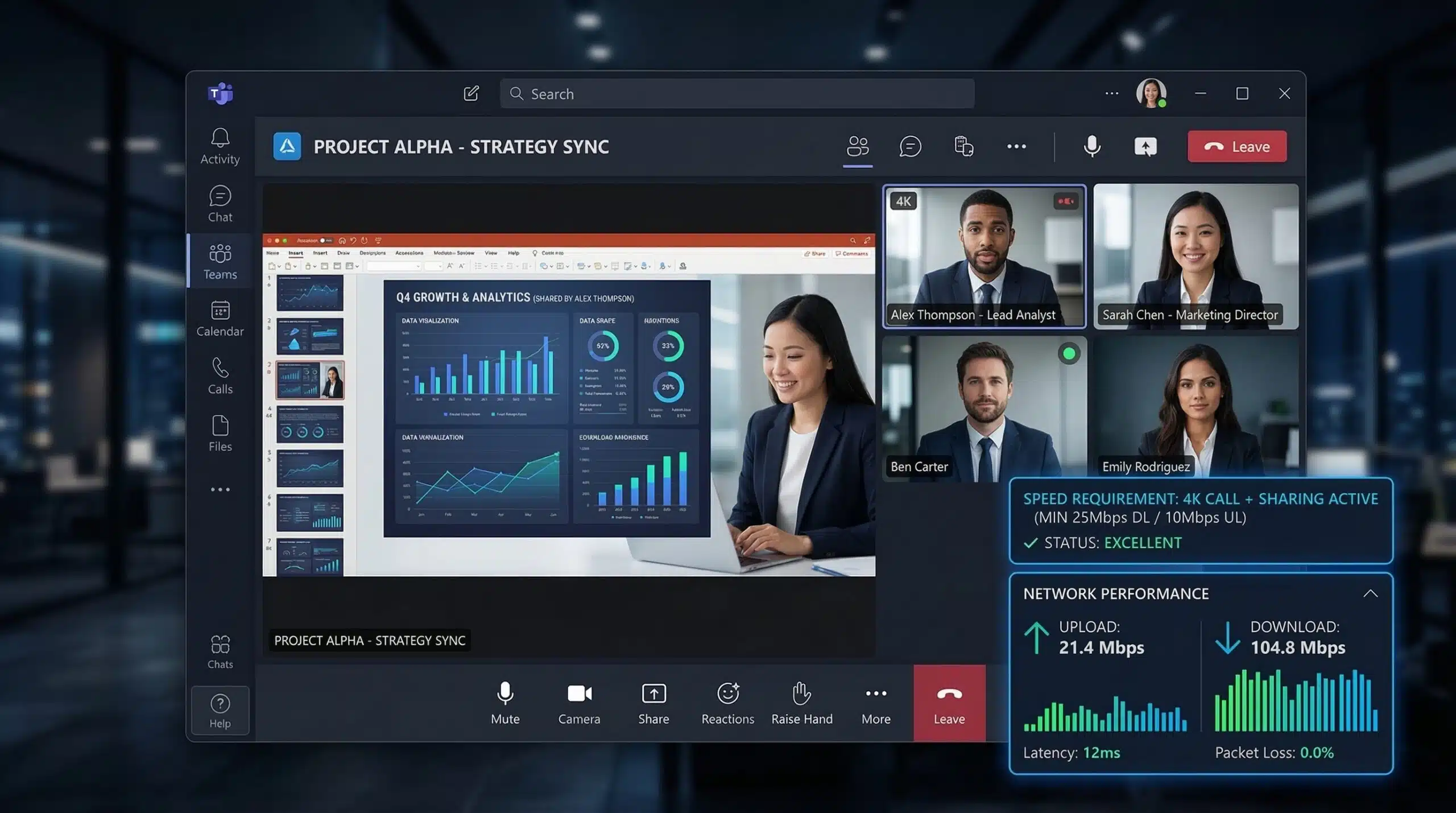
Internet Speed for Microsoft Teams — Requirements and Fixes
For a Teams video meeting, Microsoft recommends 2.5 Mbps upload and 4 Mbps download per endpoint; its best-performance guidance is 4 Mbps in each direction. Audio and screen sharing have different figures below. Plan for concurrent devices and other traffic, then use Teams’ own Call health to investigate actual meeting quality.
Microsoft Teams Bandwidth Requirements — Official
Microsoft lists the following per-endpoint rates. Each pair is upload/download in Mbps, rather than the speed of an entire household connection. See Microsoft’s bandwidth requirements.
| Teams feature | Minimum | Recommended | Best performance |
|---|---|---|---|
| Audio, one-to-one | 0.01/0.01 | 0.058/0.058 | 0.076/0.076 |
| Audio, meetings | 0.01/0.01 | 0.058/0.058 | 0.076/0.076 |
| Video, one-to-one | 0.15/0.15 | 1.5/1.5 | 4/4 |
| Video, meetings | 0.15/0.2 | 2.5/4 | 4/4 |
| Screen sharing, one-to-one | 0.2/0.2 | 1.5/1.5 | 4/4 |
| Screen sharing, meetings | 0.25/0.25 | 2.5/2.5 | 4/4 |
These are planning figures, not a guarantee of resolution. Teams adapts its media to the call and network conditions. Leave additional capacity for other participants, file sync and other household traffic.
Why Teams Feels Slow Even With Fast Internet
Adequate bandwidth does not rule out device load, competing transfers or a call-specific route problem. Compare the symptoms with Teams’ Call health and your device’s resource monitor. Pause optional file sync for one comparison and note the result. On a managed network, ask the administrator to review the relevant Microsoft guidance rather than changing security or VPN policy yourself. For setup planning, see our working from home internet guide.
Before a meeting, use the video-call connection test for a browser baseline and compare any problem with Teams’ own call-health information. If other household activity is the constraint, the household bandwidth calculator makes the planning assumptions visible. These checks do not join a Teams call or certify its media quality.
Related Guides
- Internet Speed for Zoom Video Calls
- Good Internet Speed for Working From Home
- Internet Speed for Video Calls
- What Is Upload Speed?
- Wired vs Wireless Internet Speed
- WFH With Kids Speed Guide
Two people in meetings: a worked planning example
Using the recommended video-meeting rates, two active meeting endpoints give 2 × 2.5 = 5 Mbps upload and 2 × 4 = 8 Mbps download, before other traffic and practical headroom. This is illustrative arithmetic from Microsoft’s planning table, not a measurement or a fixed codec bitrate. Count devices using your connection, not everyone invited from other locations. One person joining from two devices can create two endpoints.
Check your actual upload allowance with the internet speed test, then use the household bandwidth calculator to consider other concurrent activities. Run a throughput test before or after a call so the test traffic does not compete with the meeting you are trying to observe.
Use Teams’ own Call health
During a call, choose More actions → Settings → Call health. Microsoft’s Call health guide explains the available metrics. Record the time and symptom alongside the relevant reading:
| Teams metric | Microsoft’s typical value | How to use it |
|---|---|---|
| Roundtrip time | Below 200 ms | Compare call readings during the symptom with a quiet comparison. |
| Received audio jitter | Below 30 ms | Look for variation alongside broken or delayed audio. |
| Received packet loss | Below 2% | Keep the media reading separate from a browser request-failure percentage. |
These are Teams diagnostic references, not universal pass/fail limits or thresholds for this website’s HTTP timing. A browser result cannot replace the app’s media telemetry.
Frequently Asked Questions
Why is Teams video quality bad on my fast connection?
A fast speed test does not rule out a call-specific problem. During a meeting, open More actions → Settings → Call health and check the network and outgoing-video metrics. Device limitations and the route to Teams can also affect quality. See Microsoft’s call health guide for the current controls and metric definitions.
Does Teams use more data than Zoom?
There is no fixed winner: camera use, meeting layout, screen content and duration change data consumption in either app. For a metered connection, compare actual usage in your device or router over similar calls instead of assuming a universal hourly figure.
How do I reduce Teams bandwidth usage?
Turn off your camera when video is unnecessary, pause nonessential file sync and downloads, and check whether another device is using the connection. Compare Call health before and after each change. The saving depends on the call, so a fixed percentage reduction is not guaranteed.