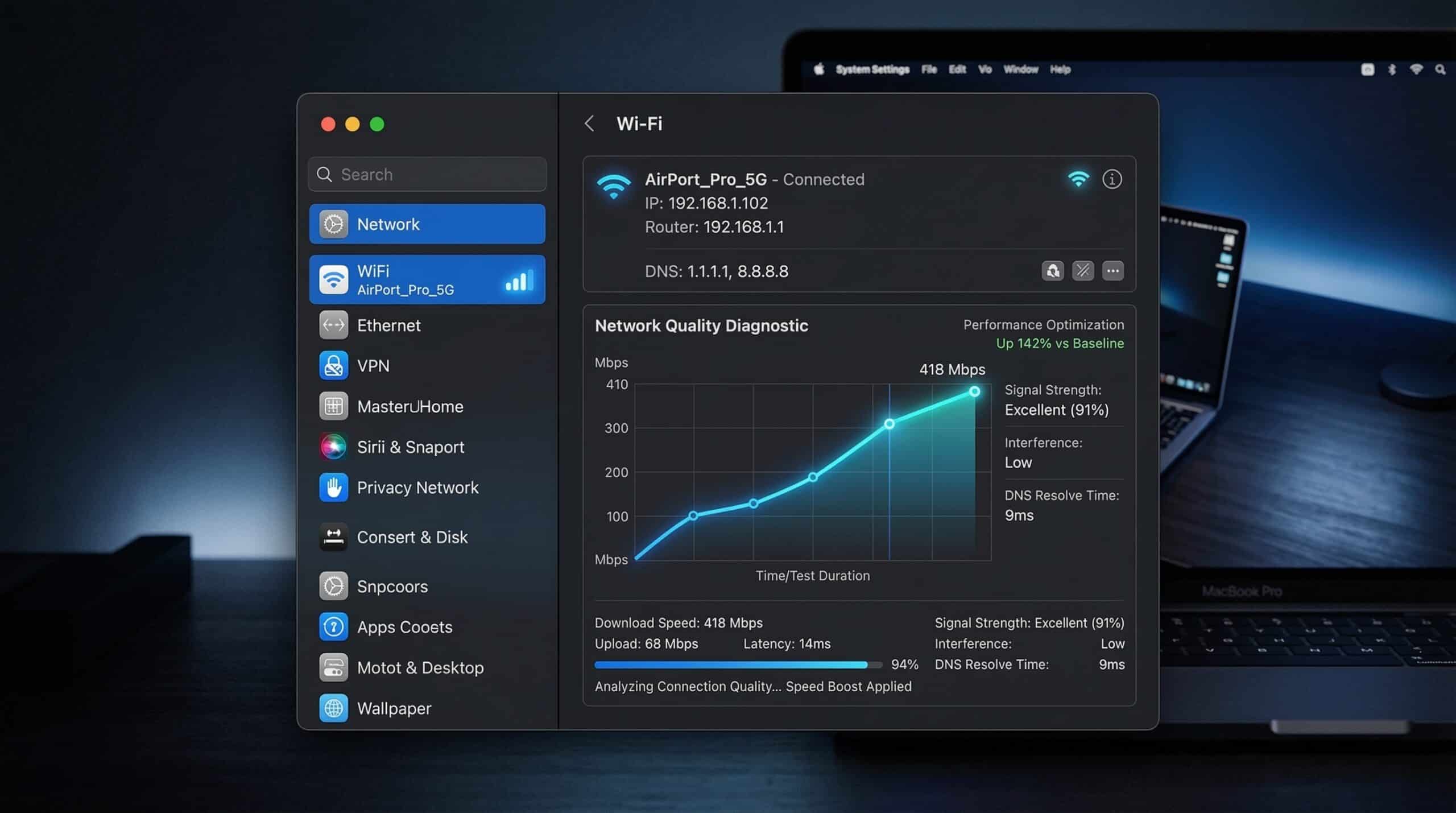
How to Fix Slow Internet on Mac — 10 Proven Fixes
Mac internet issues often have different causes than Windows — macOS handles networking differently and has its own quirks. Test your current speed at instantspeedtest.net/ to establish a baseline, then work through these Mac-specific fixes.
Fix 1–5: Quick Mac Internet Fixes
Fix 1 — Choose a different WiFi band. Hold Option and click the WiFi icon in menu bar to see detailed network info including which band (2.4 or 5 GHz) you’re connected to. If both devices support it, compare the other band in the same location; 5 GHz is not guaranteed to improve the result.
Fix 2 — Review DNS for a name-resolution problem. Record the current configuration before comparing an approved resolver. Keep required work or provider settings; a resolver change is not a general throughput upgrade.
Fix 3 — Identify a site-specific lookup problem. Compare the affected site with another ordinary site and browser. Use a supported cache procedure only when it matches that symptom; do not run privileged commands as routine speed maintenance.
Fix 4 — Renew DHCP lease when appropriate. For a connection that uses DHCP, Apple documents System Settings → Network → the service → Details → TCP/IP → Renew DHCP Lease. Check whether renewal is appropriate with the provider or administrator; this is an address-configuration step, not a guaranteed speed increase.
Fix 5 — Collect diagnostics before resetting configuration. Open Wireless Diagnostics through Option-clicking the Wi-Fi menu and preserve the incident report. Do not delete SystemConfiguration preference files as a generic fix. For a configuration comparison, the supported network-location option below preserves a route back to the existing settings.
Fix 6–10: Deeper Mac Network Fixes
Fix 6 — Check Activity Monitor’s actual labels. Open Network and distinguish data totals from the per-second rates shown at the bottom. Apple documents those labels separately. Correlate an active task with the symptom; a large total or unfamiliar process name is not proof of current bandwidth consumption.
Fix 7 — Compare an active optional sync task. Check the relevant app’s sync state. Use its supported temporary pause only if appropriate, then resume and verify pending changes complete. Do not disable iCloud globally or assume every backup uses the internet.
Fix 8 — Update macOS. Network driver improvements are included in macOS updates. System Settings → General → Software Update.
Fix 9 — Check for VPN or proxy settings. System Settings → Network → check if any VPN or proxy is active inadvertently. A VPN can change the tested path, but there is no universal percentage reduction. Record its state and use an authorised comparison; restore your chosen setting afterward.
Fix 10 — Compare a new network location if needed. Apple documents a location for testing without losing current settings. In macOS Ventura or later, use Network’s More menu → Locations → Edit Locations. Keep the existing location so you can switch back; this comparison does not guarantee that a profile was corrupt.
Related Guides
- How to Fix Slow Internet on Windows 11
- What Is DNS and How It Affects Speed
- Best DNS Servers for Speed
- Wired vs Wireless Internet Speed
- Does VPN Slow Down Internet Speed?
- Internet Slow Only on One Device
Frequently Asked Questions
Why is Safari slow but Chrome is fast on my Mac?
Browsers can differ in extensions, stored website data and privacy paths, so the pattern does not establish a DNS-cache cause. Apple recommends testing the affected website and, when appropriate, removing that site’s data after a private-window comparison. Keep sign-in information available; do not remove all sites’ data or change unrelated privacy controls as the first response.
Does turning off WiFi and back on fix slow Mac internet?
A planned off/on comparison reconnects Wi-Fi and may clear a temporary connectivity problem, but it interrupts access and does not guarantee a better channel, new address or higher speed. If the symptom returns, record its time and collect Wireless Diagnostics. DNS changes and preference-file deletion are not proven more reliable general fixes.