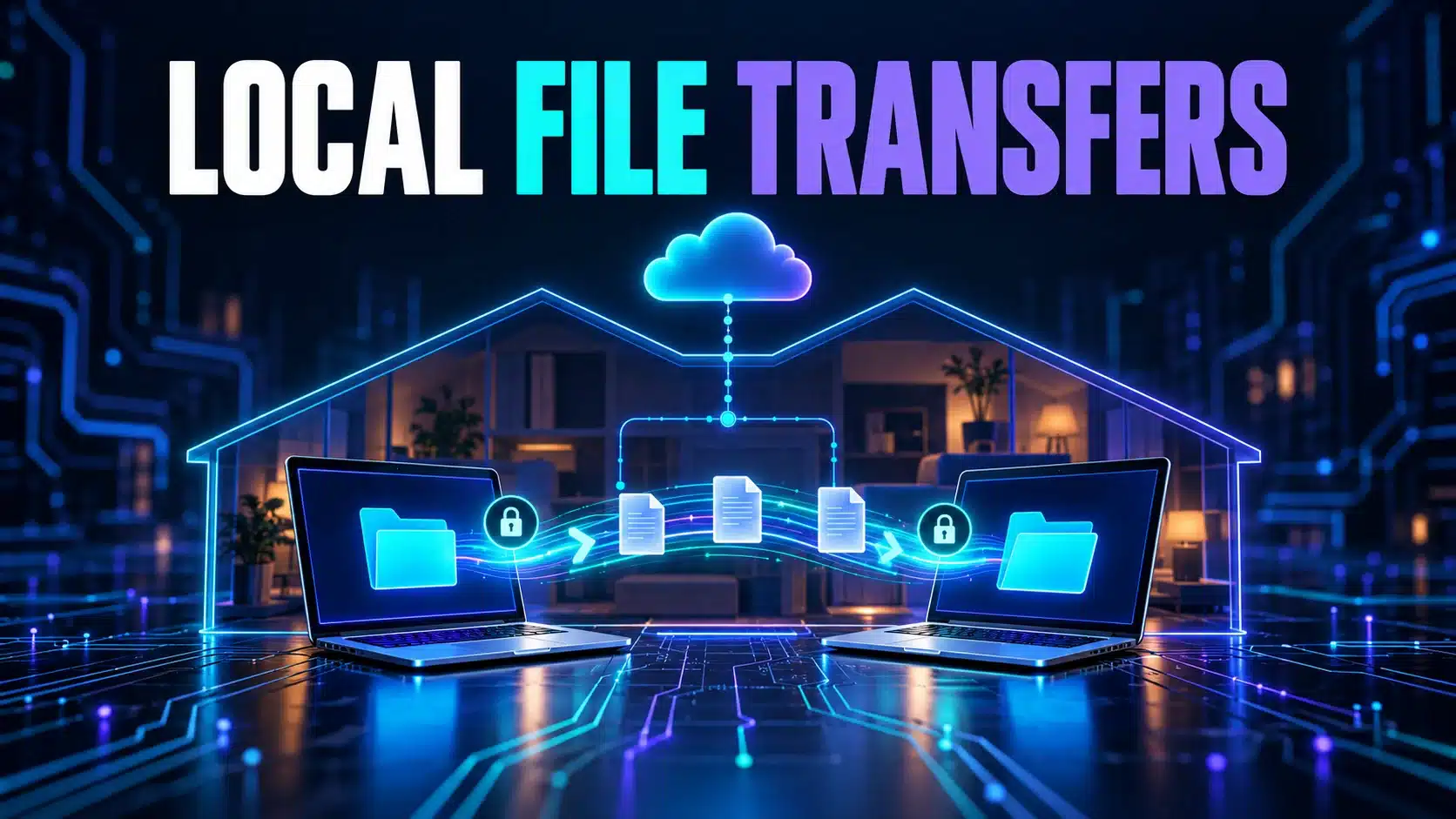
Dropbox LAN sync can obtain eligible file content from another authorized Dropbox computer on the same local network. It can help when a useful local copy already exists, but it is not an offline replacement for Dropbox and it does not make every transfer local.
Before enabling it, confirm that the desktop client supports the feature and that both computers are meant to access the same files. A household laptop and an office computer with similar Wi-Fi names are not automatically on one reachable local network. This guide focuses on the local-transfer option; the broader Dropbox sync-speed guide covers the general slowdown question.
Check support before looking for a switch
Dropbox’s current LAN sync reference places the toggle in the desktop app’s account menu, Preferences, Network. It states that LAN sync is not supported on Dropbox for macOS using Apple File Provider. Identify the actual client before assuming that a missing setting is a fault.
The same reference describes local discovery and encrypted client-to-client content transfer with the normal access controls. It requires the supported local network arrangement, including IPv4 and a shared broadcast domain. File contents can use that route, but names, folder structure and permissions are not all synchronized through LAN sync. Keep the cloud/account workflow intact.
This distinction matters when planning a transfer. A second machine needs the appropriate authorization, not just proximity. Do not share account credentials or broaden folder access as a speed workaround. On a workplace network, ask the administrator whether this feature is permitted before changing its settings.
Decide whether a local copy can actually help
Write down the two participating computers, their desktop clients and the intended shared folder. Check whether the file content is already present on the first computer. If neither machine has the content, there is no existing local copy for the second one to obtain through this feature.
Also identify the networks. Guest isolation, different network segments or a managed connection can affect local reachability. Do not conclude that two computers can discover one another because both can open websites. Our guest Wi-Fi explanation describes why internet access and access to other local devices are separate questions.
Keep the physical path in mind. A local transfer still consumes capacity on the participating Wi-Fi or Ethernet links. It does not become free of network contention merely because it avoids some internet transfer. A busy wireless path may remain the part of the arrangement that needs attention.
Make a small, authorized comparison
- Choose non-sensitive material. Use a file you are allowed to share between the two clients. Confirm the source copy is complete and usable.
- Record the starting state. Note client versions, network connection and whether the intended content is already present on each machine.
- Check the supported option. Enable LAN sync only on eligible clients and within the network’s rules. Keep other settings fixed.
- Observe the transfer and result. Check progress, successful completion and that the expected file opens on the destination.
- Record what is known. If the interface gives no route evidence, say that the path was unconfirmed. A shorter elapsed time alone does not prove that LAN sync carried the data.
- Review the feature afterward. Keep it only if it serves the intended workflow without disrupting the network.
These steps are an observation plan, not a benchmark we ran. Do not delete working cloud files to manufacture a repeat test: deletion can synchronize too. Repeating the same file can also change the starting state, making simple timing comparisons misleading.
Understand the bandwidth-limit interaction
Dropbox’s bandwidth-control instructions describe the desktop Preferences, Network, Custom bandwidth controls for upload and download. Those directions relate to different sides of syncing: local changes traveling outward and remote changes arriving on the computer. A smaller permitted rate can mean a longer wait for completion.
LAN sync has a specific exception: Dropbox says local LAN-sync transfers override its bandwidth settings. Therefore, do not rely on an internet-oriented app limit to protect every local link while this feature is active. The vendor recommends enabling LAN sync when needed because it can congest a local network.
If a meeting becomes worse during the local copy, pause the optional task or return to the prior supported setup for a comparison. Do not immediately increase the internet plan. You have changed local traffic too, and the observed symptom does not identify which link is responsible.
Keep troubleshooting proportional to the evidence
Check the client, authorization and supported network arrangement before touching firewall or router rules. Do not expose ports to the public internet or disable protection merely to make discovery work. A managed network may intentionally separate clients; give its administrator the two-computer map and the documented feature requirements.
An internet speed test measures a separate browser path and cannot verify the LAN-sync route. Our measurement method explains that boundary. For support, provide client/platform details, network arrangement, file availability, progress state and what changed. Keep the conclusion as specific as the evidence: a successful file copy is useful, while its exact transfer route may still need confirmation.