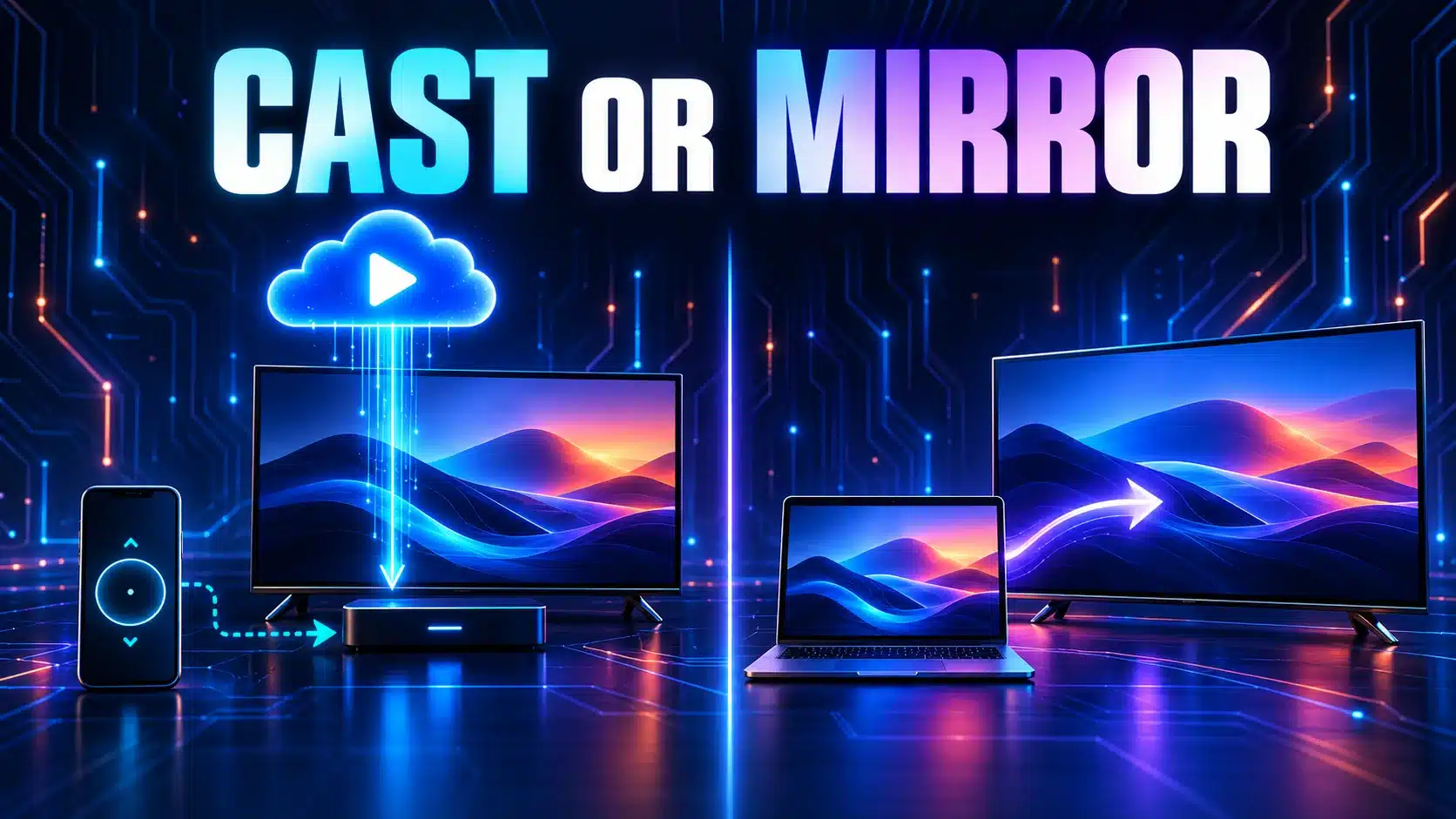
A video’s Cast button and a screen-mirroring command can put different work on the sender and receiver. Start by naming the method you used. “I sent the laptop to the TV” does not tell support whether a receiver app streamed the program or the computer kept presenting a tab or its whole screen.
That distinction helps when playback stutters on the television while the laptop seems fine. Before changing the internet plan, compare the same material using a supported method and record which device is doing what. This guide concerns playback paths after connection, rather than only whether the receiver appears in a device list.
Identify the sender and receiver
Google’s Cast architecture overview describes a sender that starts and controls a session, and a receiver app on the Cast-enabled device that handles streaming content from an online service. In that arrangement, the control device and the device delivering the picture have distinct roles.
This is an architecture description, not a promise that every app handles every file identically. A local file, a supported streaming-service Cast button and a browser screen share need not follow the same implementation. Do not assume all video must pass through the phone, or that the phone can always be switched off without affecting the task.
Make a two-line note: “sender: this laptop and browser” and “receiver: this television or streaming device”. Add the app or website and the command used to start playback. Model names matter more than saying that both devices are connected to “the Wi-Fi”.
Distinguish three starting methods
| Method | What to record | Useful observation |
|---|---|---|
| A supported player’s Cast button | The service, sender app and receiver | Whether receiver playback behaves differently from the sender’s local playback |
| Chrome tab casting | The selected tab and its content | Whether the same tab remains usable and the intended sound reaches the TV |
| Chrome screen casting | The selected screen and active applications | Whether motion, text and audio behave as required |
Google’s Chrome casting instructions distinguish casting a tab from selecting Sources, Cast screen. They also distinguish supported sites’ player buttons. The documented setup needs a compatible receiver, updated Chrome and the appropriate shared Wi-Fi arrangement; macOS 15 and later also requires the relevant system access for Chrome.
The same instructions warn that screen-casting audio may remain on the computer, while tab casting is the documented choice for sending that tab’s sound to the television. Missing TV audio is therefore not automatically evidence of low bandwidth. Check the selected method before troubleshooting the network.
Make a short, comparable playback test
- Choose representative content. Use a short clip you are entitled to play and share. Pick ordinary motion and sound, not just a still title.
- Record the current path. Note the sender, receiver, connection and whether you used the player button, tab or screen.
- Observe the receiver. Record freezes, audio problems or unreadable text at the television, not only in the sender’s preview.
- Try one supported alternative. Where the same service supports it, compare its Cast button with the browser presentation method. Keep the clip, receiver and location unchanged.
- Repeat and label the outcome. If one method works better, keep that result tied to this app and setup rather than declaring all mirroring or all casting inferior.
This is an original comparison plan, not a performance test we have carried out. Do not claim that the methods must double bandwidth, have identical latency or use a fixed bitrate. The app, device and content choices can change the workload. The comparison is useful precisely because it preserves those details.
Check the device that actually presents the picture
A good laptop speed result does not establish the receiver’s connection quality. If the television has a supported network check, record that separately; our smart-TV testing guide explains why the test device matters. Keep your phone’s mobile-data result separate from both devices’ home-network results.
For a tab or screen presentation, also note whether the sender is running unnecessary heavy tasks. Compare one optional workload at a time instead of changing the router and computer together. If native receiver playback is fine but a particular presentation method struggles, give support that exact contrast.
If the problem happens inside one television app even without a sender, the smart-TV app troubleshooting guide addresses that different starting point. A problem with the built-in app does not prove the laptop’s casting settings are responsible.
Use a speed baseline for the question it answers
Run an internet speed test separately from the playback comparison. Label the browser device, connection and time. Our methodology explains the public HTTP measurement; it cannot trace a particular Cast session or measure its exact media traffic.
For escalation, share the device models, software versions, service, starting command, receiver symptom and one comparison. Exclude personal tabs and private content from screenshots. Naming the playback path gives support a practical next step and avoids treating every “video on the TV” problem as the same network transfer.