If a USB Ethernet adapter is not recognised, identify what Windows sees before downloading a driver. A device that is missing, an unknown device, an adapter with a reported problem and an adapter that is installed but disconnected are different starting points. None can be diagnosed from an internet speed test alone.
This article concerns device recognition and identity. If Ethernet is already connected but slow, use the connected-but-slow Ethernet guide instead. There is little value in changing link-speed settings for an interface Windows has not successfully made available.
Describe the physical setup first
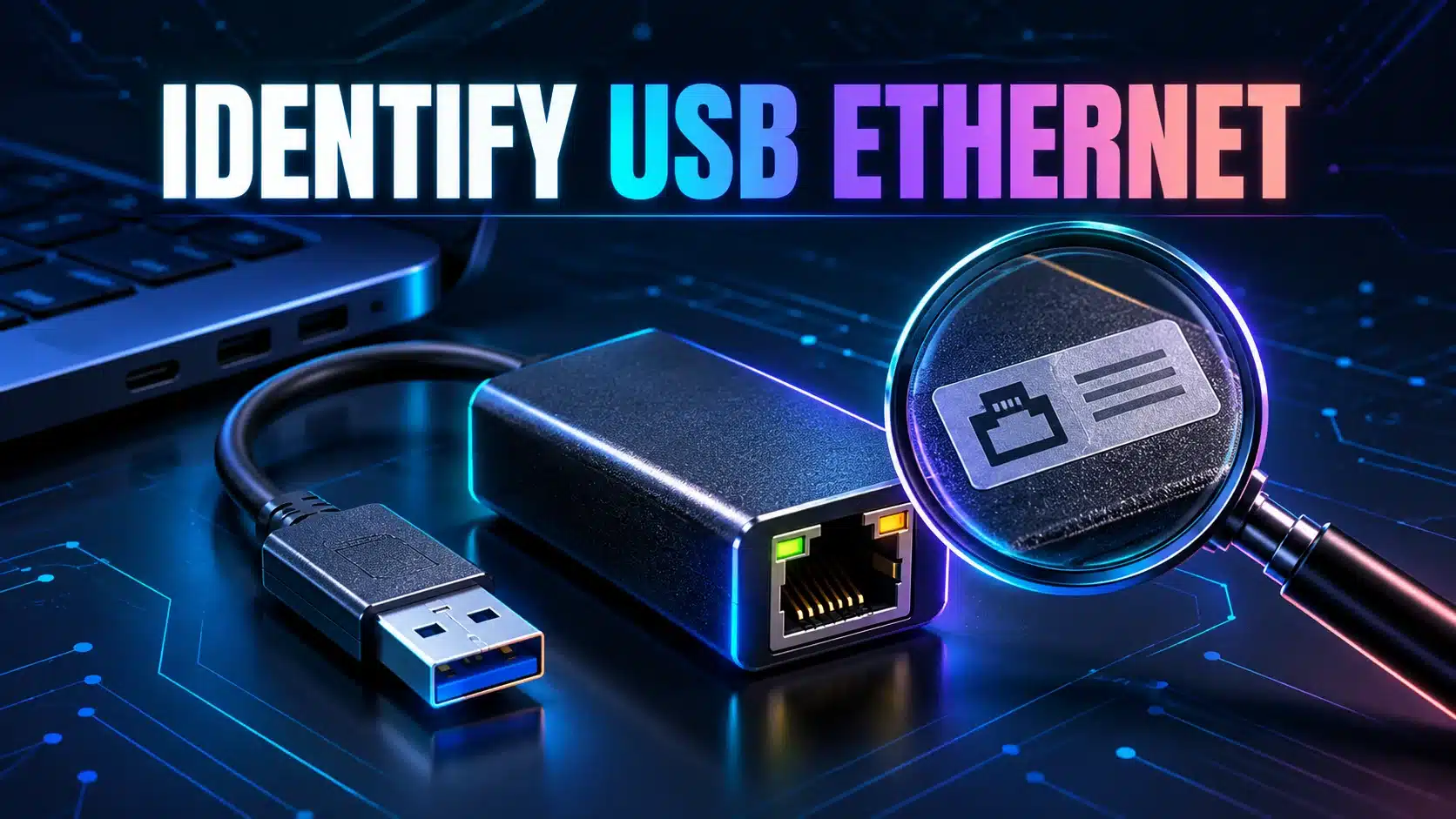
Record the adapter’s brand and model as printed on the device or its original documentation. Include the computer model, Windows version and whether a hub, dock, detachable cable or direct port is involved. Photograph the label for your own reference if it is difficult to read.
A USB-C connector shape is not a complete product identity. Avoid searching only for “USB Ethernet driver” and installing the first result. Different products can look similar, and a name shown in Windows may describe a component rather than the retail adapter you purchased.
If practical, compare a direct supported port with the original dock arrangement while keeping the same adapter. Save work before disconnecting a dock that carries other devices. Record whether the device listing changes; that is a more specific observation than “still no internet.”
Find the actual device entry
Microsoft’s Hardware ID documentation gives the supported Device Manager route: find the device, open Properties, select Details and choose Hardware Ids or Compatible Ids. Open Device Manager through Windows search and inspect the relevant entry without deleting it.
If you are uncertain which entry belongs to the adapter, observe the listing before and after one careful connection change. Do not uninstall several unknown devices to find out. If the device never appears, record that fact; there may be no hardware ID available to collect in that state.
Copy the displayed name and the exact problem/status message, if present. Keep any hardware IDs as text rather than attempting to reconstruct them from memory. Preserve the original order when more than one is shown. Redact unrelated device information when sharing screenshots.
What a hardware ID tells you
Windows uses hardware identification information when matching devices with driver packages. It is a starting point for finding the correct supported package, not proof that an arbitrary package mentioning a similar chipset is safe or suitable.
Microsoft’s separate device identification strings reference says these values should be treated as opaque strings for comparison rather than parsed. In practical terms, preserve the full value and compare it with the manufacturer’s documentation; do not edit a driver package to force a match.
A hardware ID also does not establish the current negotiated Ethernet rate, cable condition or internet capacity. Those questions come later, once the device is recognised and connected. Separating the stages prevents a driver search from becoming a speculative attempt to fix every network symptom at once.
Use the manufacturer’s support path deliberately
- Find the official support page for the exact retail model and revision, using its label and purchase documentation.
- Check the supported Windows versions and any instructions specific to a dock or adapter revision.
- Compare the device information you collected with that page. If the match is uncertain, ask the manufacturer before installing a package.
- Save the approved instructions and a recovery route before a step that may disconnect the computer.
- Follow the manufacturer’s procedure, then inspect the same Device Manager entry and record what changed.
Do not disable security controls or change driver-signing settings simply because a generic installer asks you to. On a managed computer, provide the device information to IT. The appropriate result may be confirmation that the adapter is unsupported, rather than an improvised installation.
Recognition is only the first checkpoint
After a supported installation, check whether the adapter is available and whether its normal connection status changes when the network cable is attached. Keep that observation distinct from internet access. An installed adapter can still be connected to a network that does not provide the service you need.
Try one ordinary website or authorised task before running an internet speed test. If the interface exists but has no usable connection, the no-internet troubleshooting guide provides the next investigation. Do not repeat driver installations merely because one remote website remains unavailable.
When to stop and ask for help
Escalate when the device does not enumerate through a supported arrangement, the reported status persists after the manufacturer’s procedure, or the product identity remains uncertain. Include the adapter model/revision, computer/Windows version, connection arrangement, exact status and collected IDs.
Describe the one comparison you made and its outcome. “The same device appears directly but not through this dock” is useful evidence without proving which component failed. Avoid claiming that a successful driver installation guarantees full advertised speed. The next network test should begin only after the recognition question has a clear, documented answer.