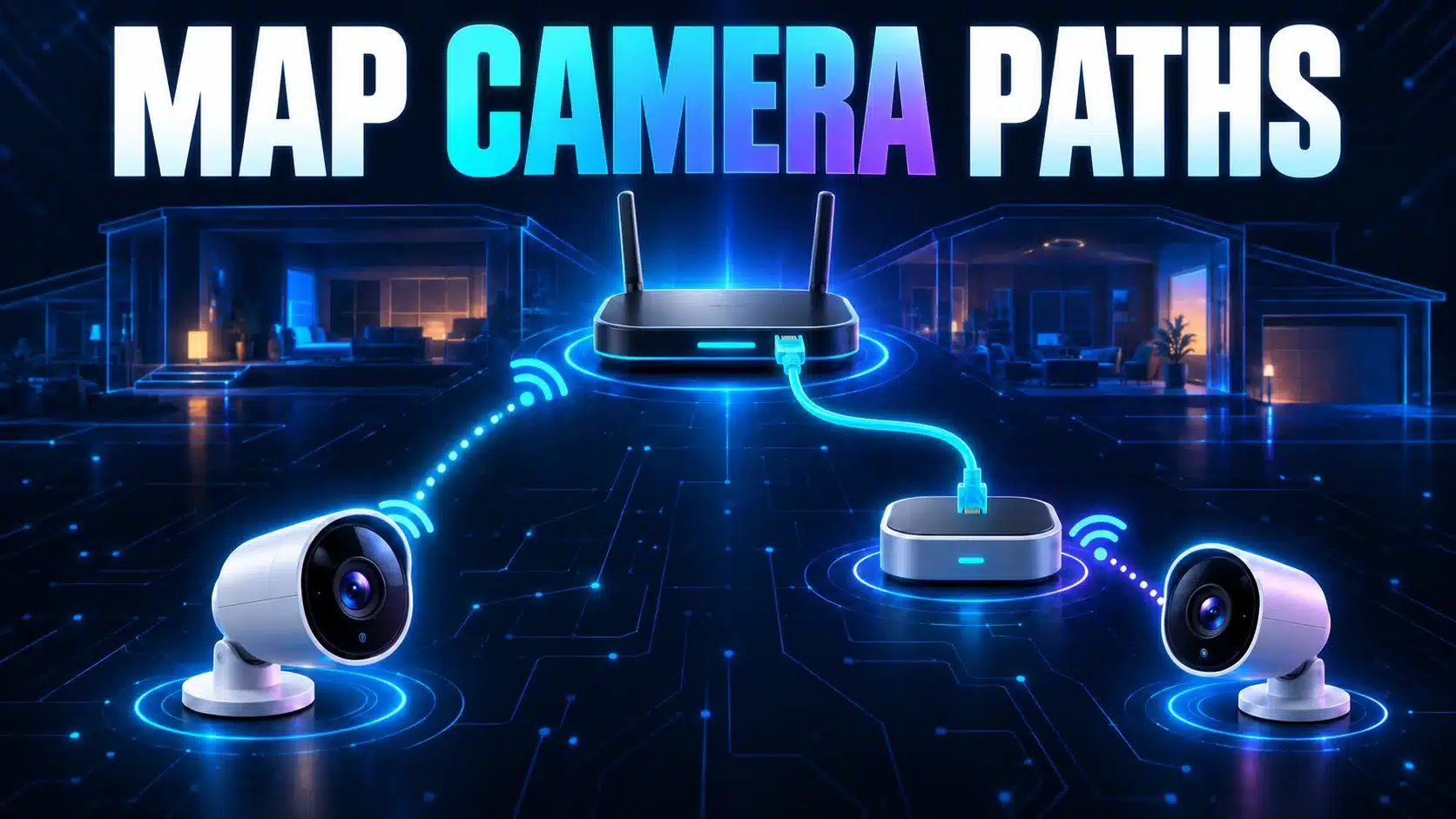
An Arlo camera may connect directly to your router, through a compatible SmartHub or Base Station, or through another supported connection for that model. You need to identify the actual path before deciding where to move equipment or which Wi-Fi settings to change. The Arlo name alone does not tell you the topology.
This matters when a camera is offline after a router change, one location has unreliable live view, or you are considering a hub for a feature. Begin with the installed hardware and supported configuration. Do not buy a hub on the assumption that every camera supports it or that it automatically fixes upload speed.
Record the exact camera and hub models
Find the complete camera model and generation in the app or on the device. Do the same for any SmartHub or Base Station. A product-family name is not enough when generations offer different connection choices. Keep the serial number private unless support needs it through an appropriate channel.
Arlo’s direct-Wi-Fi compatibility list identifies cameras and doorbells that do not require a hub. Examples include Pro 4 and Pro 5, alongside several Essential and doorbell generations. The list also notes that Go 2 supports Wi-Fi or LTE. That does not establish that every listed camera supports every hub or storage feature.
Draw the path you have, not the one you expect
Use the app’s installed-device information and physical cabling to complete a short record. If you cannot determine which device a camera uses, mark it unknown and check that model’s setup documentation. Avoid interpreting the nearest router as the camera’s access point merely because it is physically close.
| Installed arrangement | What to record | First question |
|---|---|---|
| Camera directly on Wi-Fi | Camera model and intended router/network | Does the camera join that supported network? |
| Camera using a hub/base station | Both model numbers and the hub’s cable path | Is the hub connected and is this camera linked to it? |
| Device with another supported path | Connection actually selected in its app | Are you investigating that path rather than a different one? |
Arlo’s system requirements distinguishes a router Ethernet port for hub/base-station connections from direct Wi-Fi requirements. It also describes per-device upstream needs. Use the exact model guidance when checking bands or features rather than treating a family-wide overview as a complete specification.
If the router or Wi-Fi name changed
- Check which component lost connectivity. Is only one camera unavailable, is the hub unavailable, or does the phone itself have no internet access?
- Confirm the intended connection. For direct Wi-Fi, identify the configured network. For a hub, inspect its Ethernet connection to the router without moving unrelated cables.
- Read the model’s change-network procedure. A camera’s saved wireless credentials and a hub’s wired connection are different things to update.
- Make one supported change. Keep the camera/hub pairing and network change separate where the instructions allow it.
- Verify again in the app. Record whether the device is online and whether the affected function works. Do not stop at a port light alone.
If the whole household is offline, solve that shared problem before repeatedly removing cameras from the account. If only one camera is affected, keep the other working devices unchanged so you retain a useful comparison.
Compare location without confusing the links
A phone beside a camera is a convenient supporting test device, but it is not the camera. Its radio capabilities, selected network and route can differ. With a hub arrangement, the camera-to-hub connection is also distinct from the phone-to-router connection. A good phone result cannot prove the camera’s particular link is healthy.
Use the same-device room comparison to investigate the phone’s repeatable location pattern. Label that evidence accurately. If relocating a supported component is practical, follow the manufacturer’s installation guidance and compare the same camera task before and after one change.
Keep upload planning separate from connection mode
A hub does not enlarge the internet plan’s upload capacity. Review simultaneous camera activity, other household uploads and the model’s documented requirements. A separate internet speed test helps record a browser upload baseline, while the camera bandwidth calculator models rates and activity you enter. Neither tool measures an Arlo camera’s actual stream.
For a wider explanation of camera demand, see the security-camera upload guide. Do not treat every live-view delay as insufficient Mbps; first establish whether the device joined its supported connection and whether the issue affects one or several cameras.
Check storage features before changing architecture
If your reason for considering a hub is local recording or another feature, make a separate compatibility checklist: camera generation, hub model, software requirements, account/subscription conditions and how the recordings would be accessed. Verify each point in the current product documentation. “Supports direct Wi-Fi” does not answer that entire checklist.
Send support the model pair, actual cable/network map, affected function and one controlled comparison. Ask a specific question, such as whether your exact camera can use the intended hub and feature. That turns a vague hub-versus-Wi-Fi purchase question into a configuration decision you can verify.