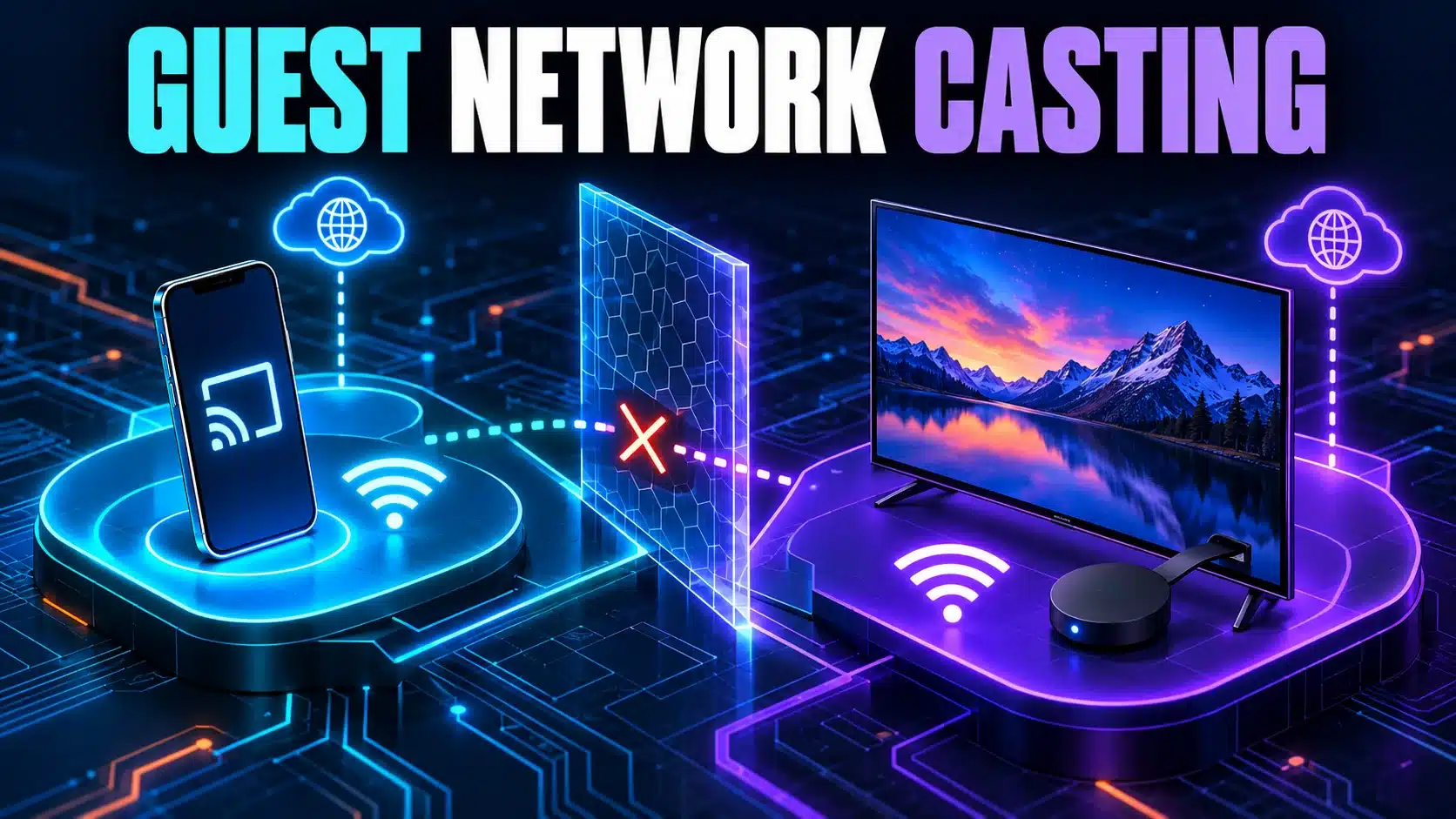
A Chromecast can have internet access while your phone cannot discover it. Casting needs the appropriate local communication as well as a usable internet connection. A guest network or access-point isolation setting can deliberately keep clients apart, so buying more bandwidth is not the first response to a missing Cast button.
First decide whether this is your home network or a managed guest network. This guide is for identifying the boundary and collecting a useful comparison. It is not a reason to bypass a hotel, workplace or school’s network policy. If you are choosing how to separate visitors at home, read the guest Wi-Fi setup guide alongside the device requirements.
Separate “online” from “locally visible”
Loading a website proves that the phone can reach that website. It does not prove that the phone can discover a TV on another part of the network. Google’s AP isolation guidance identifies isolation as a setting that can prevent devices from communicating. Vendors may call it client isolation or use similar terminology.
Do not confuse that router feature with an app’s guest feature or a password printed on a router label. Write down the names exactly as the management interface shows them. Two features sharing the word “guest” can solve different problems.
Check the actual devices and networks
- Confirm the receiver. Identify the Chromecast, Google TV Streamer or TV with Cast support you intend to use. Note whether setup is incomplete or a previously working device has disappeared.
- Check the phone’s connection. Open its Wi-Fi settings and record the selected network. Do not assume the phone stayed on the network used yesterday.
- Check the streaming device’s connection. Read its network information through the controls available on that device. Similar-looking network names are worth checking carefully.
- Record the network type. Is one device on guest Wi-Fi, an extender, a provider router or a second home router? Include those boxes in a simple sketch.
- Try one supported app. Confirm that the particular app supports casting on your device. A missing button in one app is a different observation from every supported app failing to see the receiver.
Google’s streaming-device connection instructions cover network membership, AP/client isolation and required phone permissions. They also explain that networks requiring a captive-portal sign-in are not supported by these streaming devices. A browser login screen is therefore relevant even if your phone can get through it.
On an iPhone, include local-network permission
A phone can have permission to use the internet without every app having the local access it needs. Google’s setup guidance includes Bluetooth and Local Network access for Google Home on iOS. Check the named app in the phone’s current privacy settings rather than granting unrelated permissions to every app.
After correcting a required permission, repeat the same discovery attempt. Record whether the device appears before changing the router. If it appears only in one app, keep that distinction: a device-wide conclusion would be premature. Use the controls actually available in the current app and operating-system version.
Make a controlled home-network comparison
If you own and manage the network, a practical comparison is to put the phone and receiver on the same intended private network using the product’s supported procedure. Keep other settings unchanged. If discovery works there but fails on guest Wi-Fi, that is useful evidence about separation, not a measurement of your internet speed.
Do not solve the comparison by opening every device to every visitor. Decide which people and devices should be allowed to communicate, then use the router’s documented guest-sharing or isolation features where available. If the router does not support the required selective access, ask its support team about the supported arrangement instead of guessing at firewall rules.
| Observation | Useful next check |
|---|---|
| Works on private Wi-Fi, missing on guest Wi-Fi | Review documented isolation and sharing behavior. |
| Visible in one app only | Check the affected app’s Cast support and permissions. |
| Visible, but video buffers | Investigate playback quality as a separate issue. |
| No device completes setup | Follow the exact setup/error guidance before testing throughput. |
Use speed tests after the discovery problem is clear
Once the receiver is visible and playback starts, an internet speed test can provide a separate browser baseline. A phone’s result still does not measure the TV’s precise connection. If playback varies by room, compare locations with the same device and keep the receiver’s own symptoms in your notes.
For a complaint that mixes missing devices, slow browsing and interrupted video, the guided slow-internet troubleshooter helps choose the next comparison. Avoid running a bandwidth test while using a live stream as your test case; that adds competing traffic and changes the situation.
When contacting support, give the receiver model, phone/app, network names with private details removed, whether guest isolation is enabled, and the private-versus-guest result. This turns “Chromecast cannot see Wi-Fi” into a precise discovery or setup problem without claiming that a single setting is always responsible.