WiFi Fast on Phone But Slow on Laptop — Complete Fix Guide
This is the same problem as the previous guide but approached from a systematic fix-first perspective. If your phone blazes through our speed test while your laptop crawls, work through these steps in order — most users fix the issue in the first three steps.
Fix Sequence — Most Likely First Fixes
Step 1 — Check WiFi band. Open WiFi settings and ensure your laptop is connected to the 5 GHz band (often labeled with “_5G” or “5GHz” in the network name). If bands share a name (Smart Connect), connect your phone to the network and check which band it selected in the phone’s WiFi details — then check which band your laptop selected.
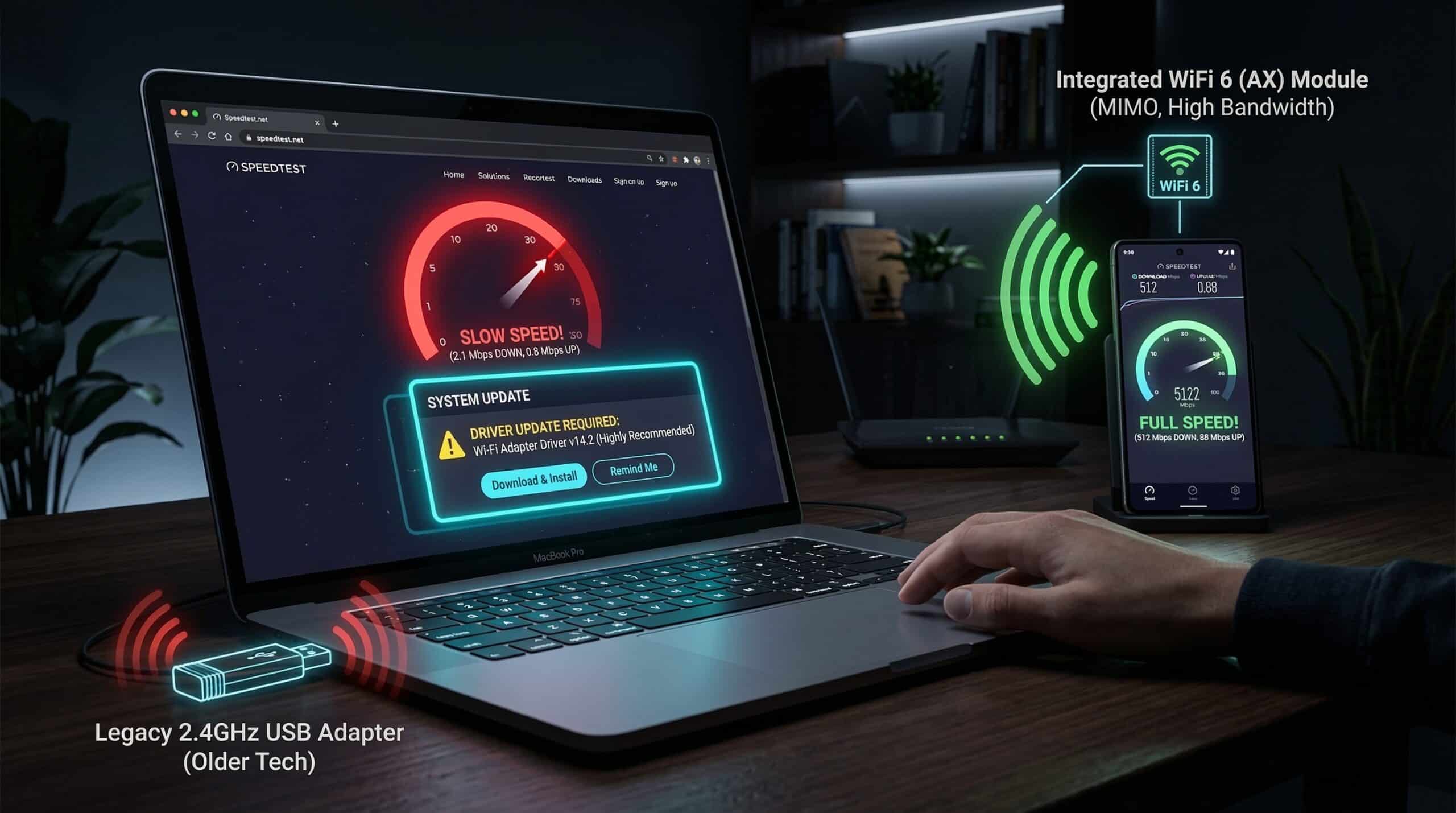
Step 2 — Update the WiFi driver. This is the single most effective fix for persistent laptop WiFi slowness. Open Device Manager → Network Adapters → right-click your WiFi adapter → Update Driver. Visit the manufacturer’s website (Intel, Qualcomm, Realtek) for the most current version.
Step 3 — Disable power saving on WiFi adapter. Device Manager → right-click WiFi adapter → Properties → Power Management → uncheck “Allow the computer to turn off this device to save power.” Also check Windows’ battery saver settings — maximum performance removes WiFi throttling.
Step 4 — Check background bandwidth use. Open Task Manager (Ctrl+Shift+Esc) → Performance → Open Resource Monitor → Network tab. Sort by “Send” and “Receive” columns to identify apps consuming bandwidth. Windows Update, OneDrive, Dropbox, and Steam are common culprits.
Step 5 — Reset network settings. Open elevated Command Prompt and run: netsh winsock reset, netsh int ip reset, ipconfig /flushdns. Restart. This clears corrupted network stack settings that can cause persistent slowness.
Related Guides
- WiFi Slow on Laptop But Fast on Phone
- How to Fix Slow Internet on Windows 11
- Internet Slow Only on One Device
- How to Speed Up Internet on PC
- 2.4 GHz vs 5 GHz WiFi
- Wired vs Wireless Internet Speed
Frequently Asked Questions
Why does my laptop WiFi get worse over time?
Several causes: WiFi drivers becoming outdated as your OS updates while driver updates lag; accumulated Windows bloat and startup programs consuming background bandwidth; thermal degradation of the WiFi adapter (rare); router channel congestion increasing as neighbors add devices. Regular driver updates, occasional network resets, and switching to a less congested channel address most progressive slowdowns.
Does Windows 11 have WiFi problems?
Windows 11 introduced new WiFi power management and driver model changes that caused WiFi performance regressions for some hardware, particularly older Intel and Realtek WiFi adapters. Microsoft has released multiple cumulative updates addressing WiFi issues. Ensure Windows 11 is fully updated, then check for the latest WiFi driver from your adapter manufacturer separate from Windows Update. See our dedicated Windows 11 internet fix guide.
Is a USB WiFi dongle faster than built-in WiFi?
A modern WiFi 6 USB adapter is typically faster than an old built-in WiFi 4 or early WiFi 5 adapter. A USB 3.0 WiFi 6 dongle with external antennas can easily outperform a laptop’s internal WiFi 5 adapter, especially at distance. USB 2.0 dongles are bandwidth-limited by the USB 2.0 interface (480 Mbps theoretical vs USB 3.0’s 5 Gbps), so ensure the adapter uses USB 3.0 for full-speed WiFi 6 performance.