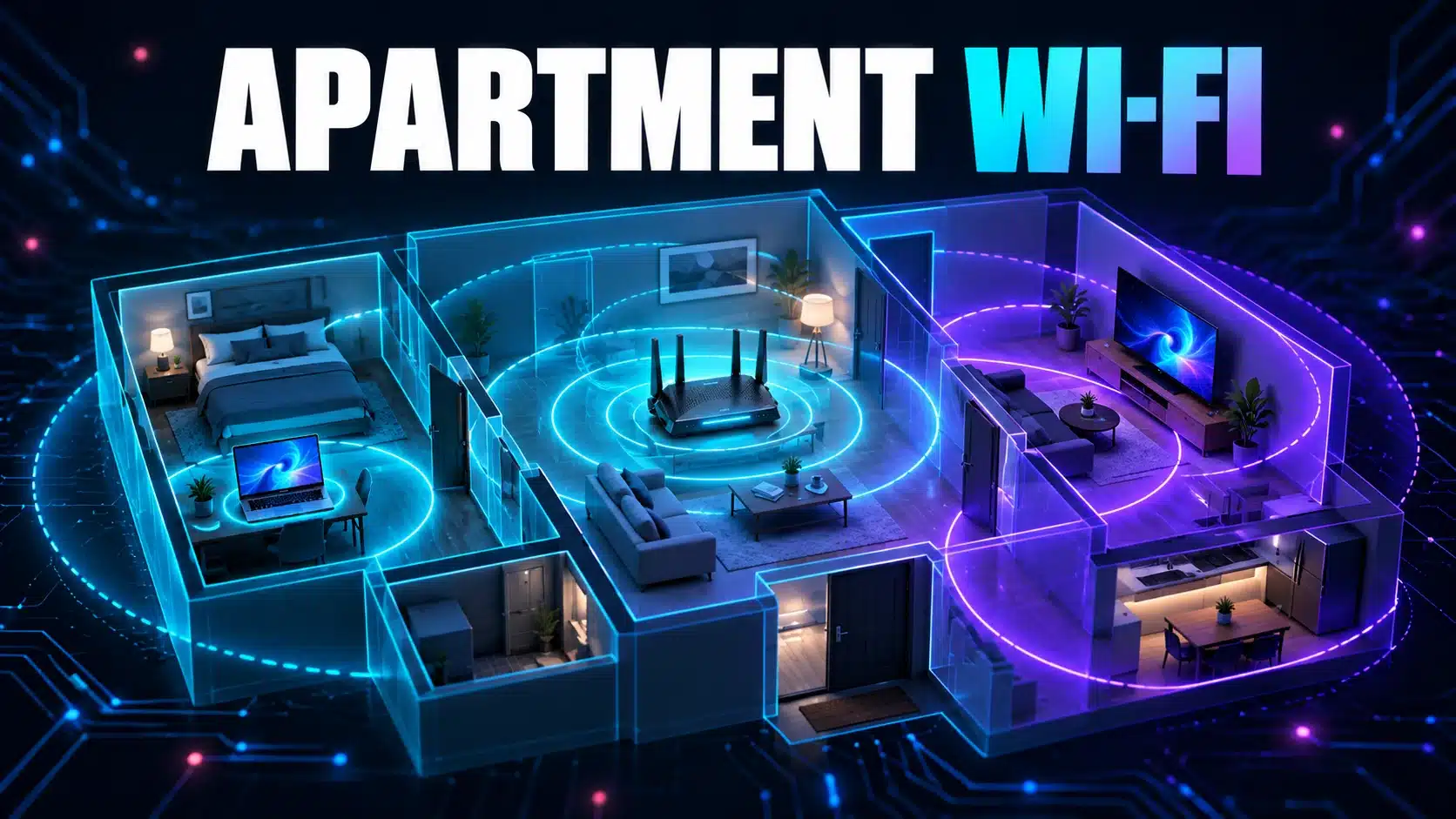
Good Wi-Fi for an apartment starts with reliable coverage where you actually use it, plus enough download and upload capacity for simultaneous activities. A larger internet plan can shorten a download, but it cannot move a router out of a cupboard or make a weak connection through a concrete wall reliable.
Separate three questions: what reaches the apartment, what reaches each room, and what happens when roommates use the connection together. This guide gives you a practical way to answer them before buying equipment or changing your plan.
Start with the apartment’s actual connection
Ask whether you have a private broadband line, a building Ethernet outlet, a shared managed Wi-Fi service or a cellular home-internet router. These arrangements give you different control. With managed Wi-Fi, adding a personal router may be prohibited or create a second routing layer; ask the building operator which equipment and connection method are supported.
For a new tenancy, confirm the service available at the exact unit, the stated upload as well as download, any allowance, installation permission and where the equipment can be placed. The name of a provider on a building advert does not establish the service you will receive in your unit. If the boxes are confusing, read our modem and router explanation.
Choose capacity from activities, not bedroom count
A one-bedroom apartment can have two people on calls while a television streams video. A larger apartment may have one light user. Count activities likely to run together and treat upload separately from download.
| Activity | Download planning input | Upload planning input | Source and limit |
|---|---|---|---|
| One Netflix 1080p stream | 5 Mbps or higher | Not a stated video-upload requirement | Netflix recommendation; depends on quality and service conditions. |
| One Netflix 4K stream | 15 Mbps or higher | Not a stated video-upload requirement | Netflix’s recommendation for a stable connection, not the whole household. |
| One Zoom group call at 720p | 1.8 Mbps | 2.6 Mbps | Zoom desktop bandwidth guidance; actual use adapts to conditions. |
| One Zoom call at 1080p | 3.0 Mbps | 3.8 Mbps | Quality availability also depends on device, account and meeting settings. |
Illustrative calculation, not an apartment measurement: two 720p group calls and one 4K stream give 18.6 Mbps of these stated download inputs (1.8 + 1.8 + 15) and 5.2 Mbps of call upload (2.6 + 2.6). Allow additional capacity for other traffic and fluctuations. A usable 50 Mbps down/10 Mbps up connection could accommodate those planning inputs, but the arithmetic does not certify call quality or reserve that capacity.
Enter your own mix in the household bandwidth calculator. Large game downloads, backups and creator uploads are separate time-and-capacity decisions: use the download and upload time calculator rather than a universal “Mbps per person” rule.
Measure three locations before buying a router
Use the same laptop or phone for the comparisons. Keep its power state and browser consistent, record whether a VPN is active and avoid changing several settings at once. Check the test’s data notice first, particularly on a cellular allowance.
- Baseline: run a quiet comparison near the router. If you have a supported wired connection and suitable adapter, record a separate Ethernet baseline.
- Working location: repeat at your normal desk, television or other problem room. Note doors, router position and the Wi-Fi band if your device exposes it.
- Busy period: repeat the relevant task when the apartment is normally occupied. Record active calls, streams and uploads instead of assuming every evening slowdown comes from neighbors.
The Wi-Fi room comparison tool helps keep same-device browser runs together. It does not scan nearby access points or measure radio signal strength. Microsoft’s layout guidance likewise recommends recording tests in different places before and after a change.
| Observation | Useful next check |
|---|---|
| Near-router result is healthy; desk result is consistently poorer | Check placement, band and the path through walls before upgrading broadband. |
| Wired and near-router runs are both poor while transfers are quiet | Check service status, device limitations and provider-side evidence. |
| Calls deteriorate during a backup | Compare available upload and pause or schedule that backup; investigate loaded latency. |
| Only one device struggles in the same location | Investigate that device’s adapter, software and connection before replacing the whole network. |
Improve placement and bands without guessing
Place the router where it can serve the rooms you use, with ventilation and space around it. Avoid enclosing it behind metal or inside furniture simply to hide the cables. Google’s interference guidance identifies dense materials, appliances and other wireless equipment as possible obstacles; the number of nearby network names alone does not measure congestion.
Compare the bands your router and device actually support. A higher band can offer useful capacity nearby, while a lower band may remain more usable through obstacles. Do not disable 2.4 GHz just because you live in an apartment; some devices require it. For device-specific measurements and placement checks, use our Wi-Fi signal-strength guide.
If you administer the router, follow its documented configuration rather than changing every available setting. Apple’s recommended router settings favor automatic channel selection and 20 MHz width on 2.4 GHz, with appropriate security retained. Regional rules and device support matter; 6 GHz is not a universal cure for neighboring networks or thick walls.
Choose renter-friendly equipment from the comparison
For a stationary work computer or television, a permitted Ethernet run can remove the wireless hop from that device’s route. Check cable routing with the landlord or building operator; do not drill, obstruct access or alter shared equipment without permission.
If a single room remains weak, an access point with a wired connection, a compatible mesh node or an extender may help. The new device still needs a good connection back to the main network. Putting a wireless extender in the dead zone can simply repeat a weak link. Compare these options in our mesh-versus-extender guide.
Keep the supplied router if it provides the coverage, control and capacity you need. Replace it only when the comparison identifies a relevant limitation or you need a supported feature. Neither a newer Wi-Fi generation nor an expensive mesh kit automatically increases the broadband service entering the unit.
Keep a short log for the building operator or ISP
Record the unit’s connection type, device, room, time, measured upload/download, actual application symptom and whether other transfers were running. Repeat an important comparison rather than presenting one unusually high or low result as typical. Keep addresses, account details and passwords out of a public troubleshooting post.
If only building-managed internet is available, ask the operator about per-unit capacity, access-point placement, client isolation and supported equipment. If comparing alternatives in the US, our Hughesnet versus Starlink guide and Starlink versus fiber comparison explain availability and installation trade-offs; check the actual address offer rather than assuming an apartment balcony can support a permitted, unobstructed dish installation.
Apartment Wi-Fi questions
Is 100 Mbps enough for an apartment?
It can be enough for many activity mixes. Check simultaneous download demand, the separate upload rate and the result at the actual desk or television. A 100 Mbps plan does not guarantee 100 Mbps in every room, while some households value faster plans mainly for shorter large-file transfers.
Will a new router fix slow building internet?
Only if the current local equipment is the relevant constraint and the building supports the replacement. It cannot increase a managed service’s allocation or repair a provider outage. Compare near-router and wired evidence before buying.
Should every apartment use mesh Wi-Fi?
No. One well-positioned access point may cover the apartment adequately. Use extra nodes when room comparisons show a coverage problem and the proposed backhaul can support them.