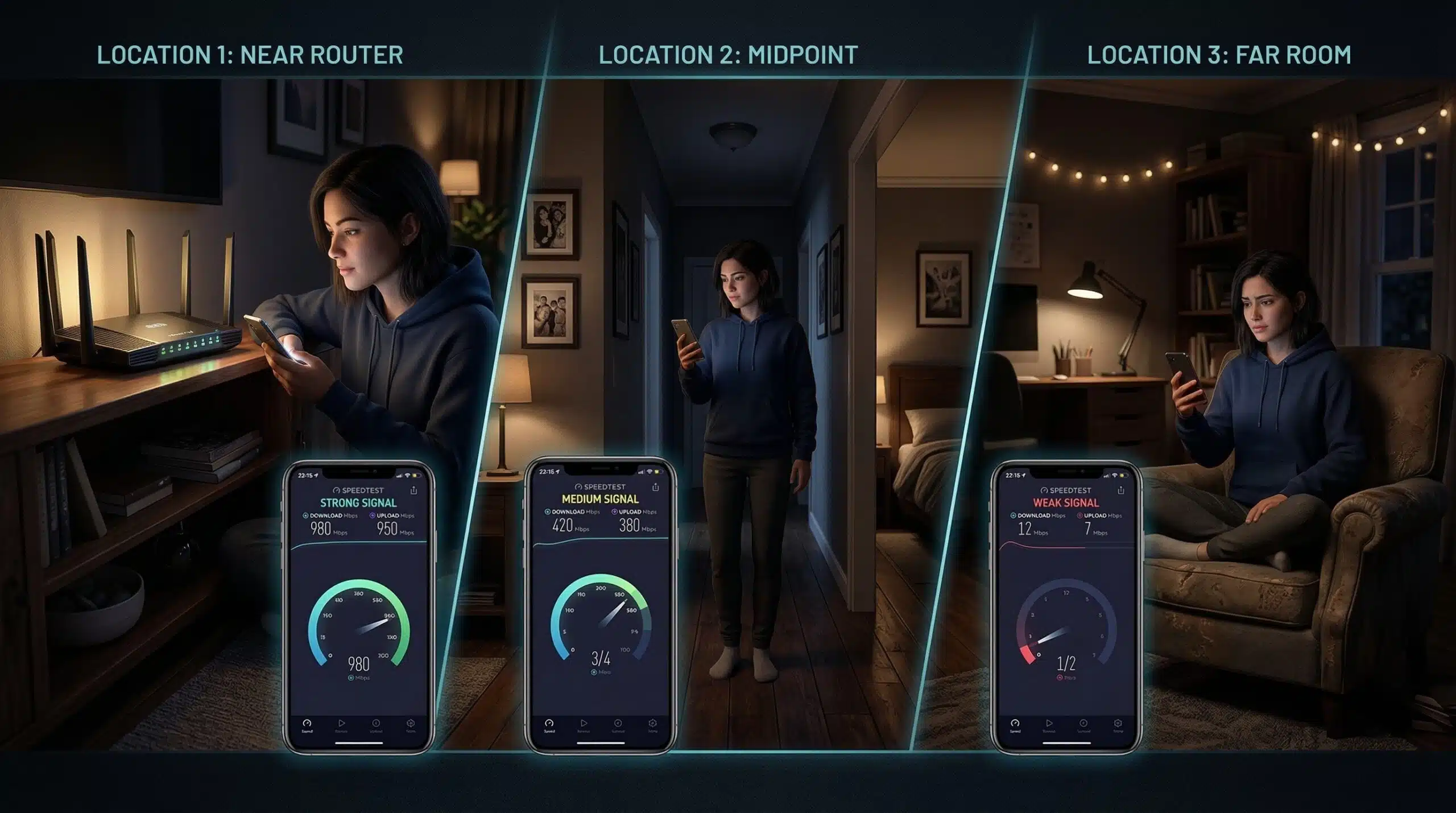
How to Test WiFi Speed — The Right Way to Measure Your WiFi
Testing WiFi speed correctly produces actionable results. The key rule: test from the specific device in the specific location where you experience the problem. Visit instantspeedtest.net/ on that device — not on your phone next to the router if your TV in the bedroom is the problem.
Step-by-Step WiFi Speed Test — Accurate Method
Step 1 — Test from the problem device and location. Open instantspeedtest.net/ on the device experiencing issues, from its actual usage location. A test at the router is useless for diagnosing bedroom coverage.
Step 2 — Close all other apps and background tasks. Background cloud sync, streaming, and updates consume bandwidth and produce misleadingly low test results. Close everything before running.
Step 3 — Note all four metrics. Download speed, upload speed, ping, and jitter — all matter. A great download but high jitter means video calls will still suffer.
Step 4 — Establish an Ethernet baseline. Connect the same device (or any device) via Ethernet and retest. The gap between WiFi and Ethernet shows how much WiFi overhead you have. Typical good WiFi delivers 60–85% of Ethernet speed.
Step 5 — Test multiple locations. Test at the router, midpoint of your home, and farthest rooms. This maps signal quality across your space and pinpoints where coverage drops — the foundation for deciding whether you need a mesh node, extender, or just router repositioning.
What Your WiFi Test Results Mean
WiFi near router ≈ Ethernet speed → your router and ISP deliver correctly. WiFi drops significantly at 5m distance → router placement or hardware issue. One device slow everywhere on WiFi → device driver or band issue (see our laptop vs phone speed guide). All WiFi devices slow but Ethernet fast → router WiFi congestion or channel issue. All devices slow including Ethernet → ISP or modem issue.
Related Guides
- Test Speed Without an App
- Wired vs Wireless Internet Speed
- Why Speeds Differ on Different Devices
- How to Boost WiFi Signal
- 2.4 GHz vs 5 GHz WiFi
- Does Router Placement Affect Speed?
Frequently Asked Questions
What is a good WiFi speed test result?
A good result depends on your activity. For 4K streaming: 25+ Mbps. For gaming: speed is secondary to ping — under 40ms is the target. For HD video calls: 10+ Mbps with jitter under 10ms. As a general benchmark, getting 50–80% of your internet plan speed on WiFi at typical household distances is normal and acceptable. Under 30% of plan speed on WiFi indicates a fixable issue.
How do I test WiFi speed between two local devices?
To test local network throughput (not internet speed) between two devices on the same WiFi, use iPerf3 — a free cross-platform tool. Run iPerf3 in server mode on one device and client mode on the other to measure local WiFi transfer rates independent of your internet connection. This is useful for testing mesh backhaul performance or NAS transfer speeds.