How to Fix Packet Loss on WiFi — Step-by-Step Guide
Packet loss — where data packets fail to reach their destination — causes the most severe internet quality issues: game teleporting, video call freezing, choppy audio, and incomplete page loads. Even 2–3% packet loss is noticeable; over 5% makes real-time applications unusable. Diagnose packet loss with a sustained ping test: ping 8.8.8.8 -t on Windows (Ctrl+C to stop). Check our speed test for baseline measurements.
Packet Loss Causes and Fixes — Step by Step
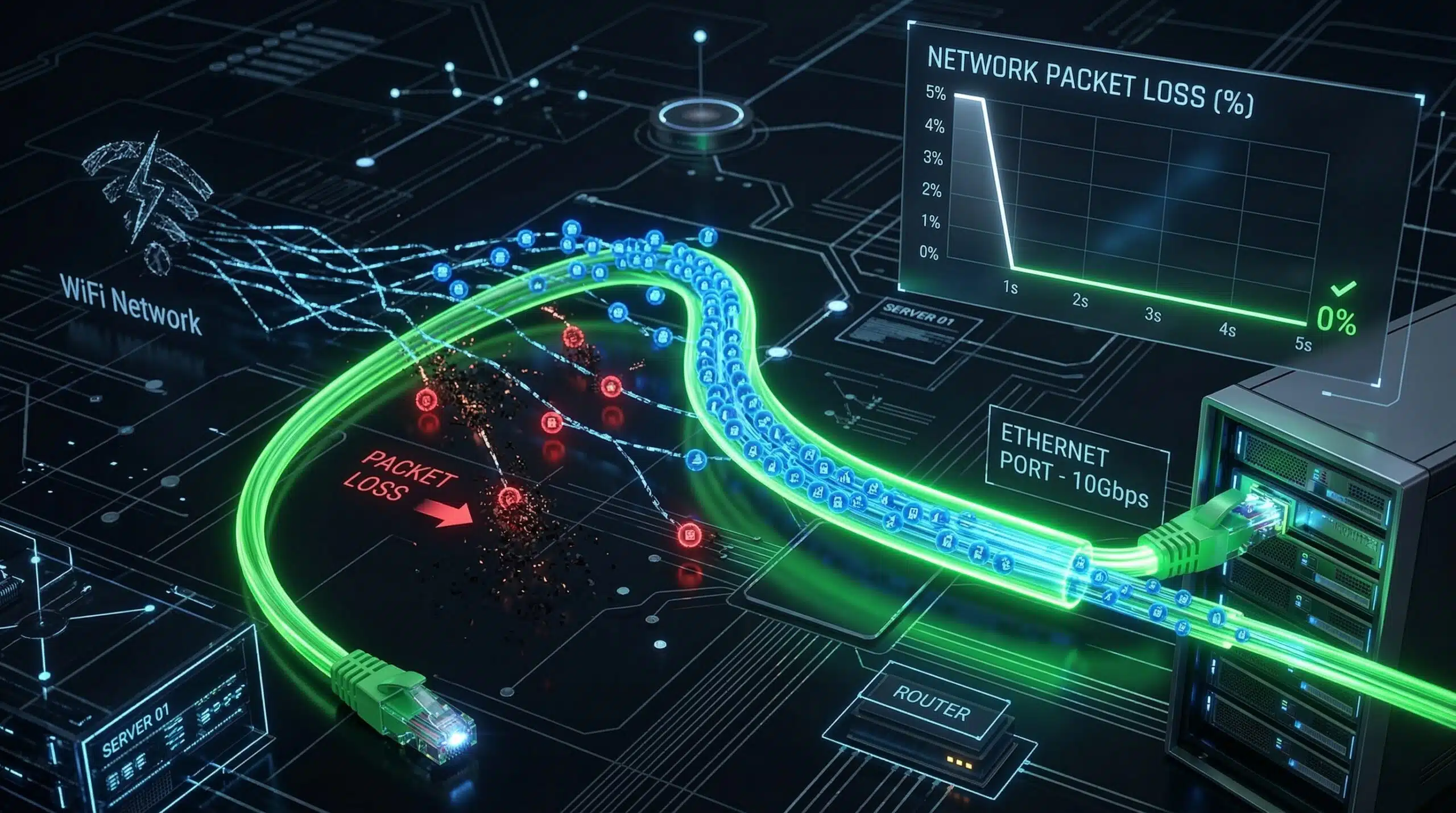
Step 1 — Test wired vs WiFi. Plug into Ethernet and run the same ping test. If packet loss disappears on Ethernet, the problem is WiFi-specific (signal strength, interference, channel congestion). If packet loss persists on Ethernet, the problem is upstream (ISP, modem, or router).
Step 2 — If WiFi-specific: improve signal. Move closer to router, eliminate obstacles, switch to 5 GHz band, change WiFi channel (use channels 1/6/11 for 2.4 GHz). Weak signal causes retransmissions that appear as packet loss.
Step 3 — Check for WiFi interference. 2.4 GHz band is heavily congested in apartment buildings. Use a WiFi analyzer app to see competing networks. Switch to 5 GHz or a less congested 2.4 GHz channel.
Step 4 — If Ethernet packet loss: test modem directly. Connect directly to modem (bypassing router). If packet loss clears, router is the issue. If packet loss persists, ISP line quality is the problem.
Step 5 — Contact ISP with documentation. Document: date, time, packet loss percentage, result of ping test to 8.8.8.8 (pasted from terminal). ISP line faults — corroded connectors, overloaded nodes — cause persistent packet loss that requires infrastructure repair. Related: see our guide on what causes packet loss.
Related Guides
- What Causes Packet Loss?
- Packet Loss vs High Ping
- Why Is My Jitter So High?
- Wired vs Wireless Internet Speed
- How to Reduce Ping in Gaming
- 2.4 GHz vs 5 GHz WiFi
Frequently Asked Questions
Is 1% packet loss bad?
For casual browsing and streaming — barely noticeable. For real-time applications (gaming, VoIP, Zoom) — yes, 1% packet loss causes visible problems. In gaming, 1% packet loss means 1 in every 100 actions doesn’t register — in a fast-paced FPS game sending 20 actions per second, that’s one missed action every 5 seconds. For competitive gaming, 0% packet loss is the target.
Can a VPN cause packet loss?
Yes — VPN protocols occasionally drop or fail to reassemble packets, particularly on unreliable underlying connections. UDP-based VPN protocols (WireGuard, OpenVPN UDP mode) are more susceptible to packet loss than TCP-based configurations. If packet loss appears after connecting a VPN, try switching VPN servers, changing protocol (WireGuard → OpenVPN TCP), or temporarily disconnecting VPN to confirm it’s the cause.