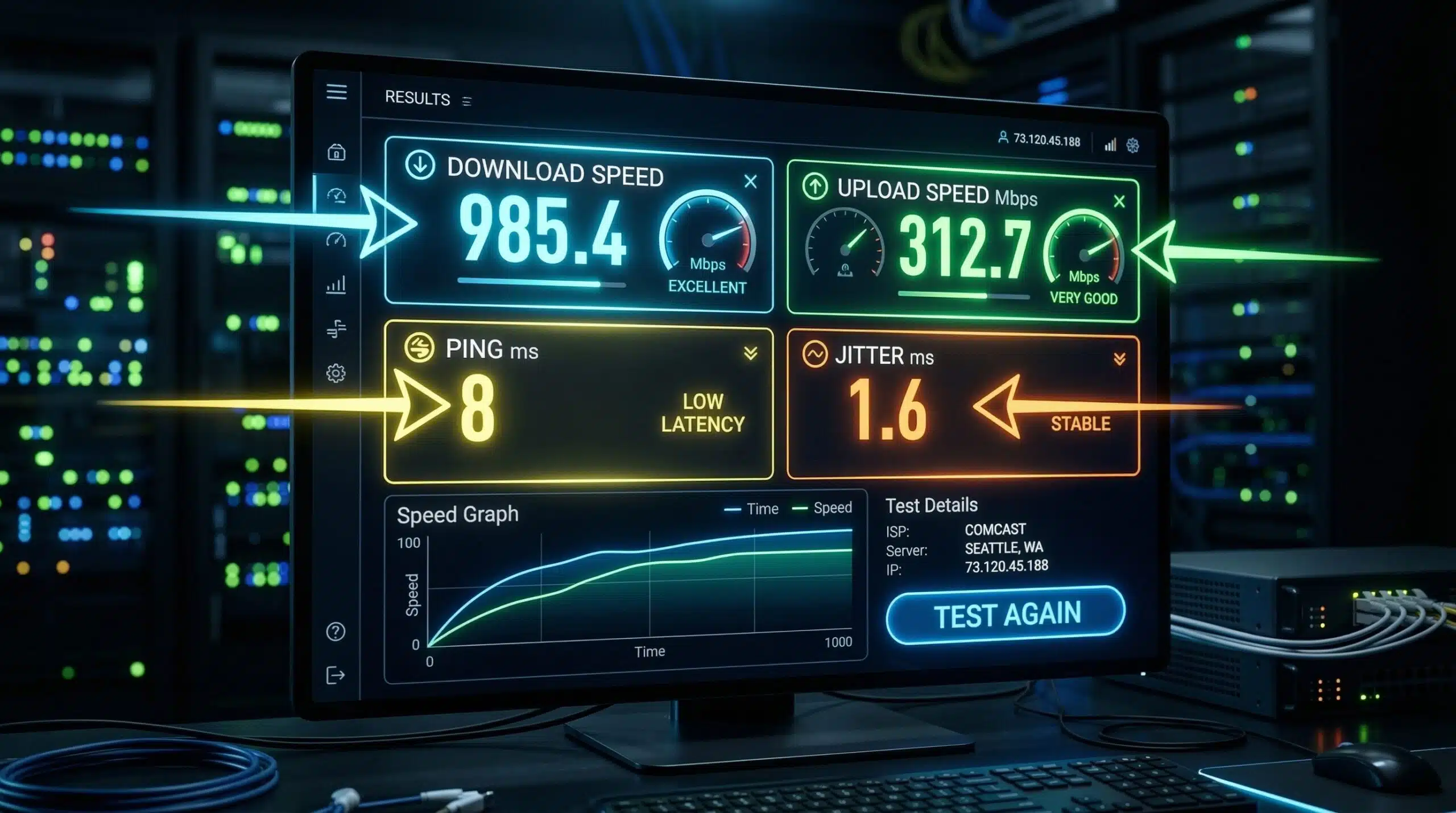
How to Read Speed Test Results — What Every Number Means
A speed test gives you four numbers: download speed, upload speed, ping, and jitter. Most people glance at the download number and move on — but the full picture is far more informative. Each metric tells you something different about your connection’s quality, and knowing how to interpret all four helps you diagnose real problems. Run your test now at instantspeedtest.net/, then use this guide to understand exactly what you’re seeing.
The Four Speed Test Metrics — Decoded
| Metric | Unit | What It Measures | Good Value |
|---|---|---|---|
| Download Speed | Mbps | How fast data arrives at your device | 25+ Mbps for single user |
| Upload Speed | Mbps | How fast data leaves your device | 5+ Mbps for video calls |
| Ping | ms | Round-trip response time | Under 40ms for gaming |
| Jitter | ms | Variation in ping over time | Under 10ms |
Understanding Your Download Speed Number
Download speed is the most straightforward metric. Compare it against your plan’s advertised speed — getting 70–95% of advertised speed on a wired connection is normal and good. On WiFi, 40–80% of wired speed is typical. Below 40% of your plan consistently suggests a problem. Common benchmarks: 5 Mbps handles one HD stream; 25 Mbps handles one 4K stream or one person working from home comfortably; 100 Mbps handles a whole family simultaneously.
Understanding Your Upload Speed Number
Upload speed is where cable internet plans often disappoint. If you’re on cable and your upload is 10–20x lower than your download, that’s by design — cable infrastructure is asymmetric. Fiber provides symmetric speeds. The minimum you need: 3 Mbps for SD video calls, 5 Mbps for HD video calls, 8–10 Mbps for Twitch streaming at 1080p. If you work from home and have regular video calls with colleagues, anything under 5 Mbps upload will cause visible quality issues.
Understanding Your Ping Number
Your ping number reflects latency to the nearest test server. Important: this is always lower than your in-game ping to a game server in another city or country. Use it as a baseline. Under 20ms is excellent. 20–50ms is good. Over 100ms indicates a problem. If your ping is high even to a local server, check whether you’re on WiFi (switch to Ethernet), whether other devices are heavily using the network, or whether your ISP has congestion issues.
Understanding Your Jitter Number
Jitter is the most misunderstood metric. Under 5ms is excellent — essentially imperceptible. 5–15ms is acceptable for most uses. Above 20ms causes noticeable issues: audio dropouts on calls, stuttering in gaming, and buffering in live streams. High jitter while your ping is low usually indicates WiFi interference — the most common cause. Switching to Ethernet typically drops jitter from 15–30ms to under 2ms instantly.
What to Do If Your Results Are Disappointing
Low download: check if background downloads are running, reboot your router, test via Ethernet. If still low, contact your ISP. High ping: switch to Ethernet, choose closer game/test servers. High jitter: almost always WiFi — switch to Ethernet. Low upload on cable: expected by design; consider fiber if it’s limiting your work. For specific troubleshooting, see our guides on what causes slow internet and download speed slower than your plan.
Related Guides
- What Is Download Speed?
- What Is Upload Speed?
- What Is Ping?
- What Is Jitter?
- What Is a Speed Test?
- Ookla vs Fast.com vs Google Speed Test
Frequently Asked Questions
What is a good speed test result?
A good result depends on your needs. For a single user: 25 Mbps download, 5 Mbps upload, under 30ms ping, under 10ms jitter. For a family of four: 100 Mbps download, 10+ Mbps upload, under 40ms ping. For a competitive gamer: any download speed, under 20ms ping, under 5ms jitter is the priority over raw speed numbers.
Why does my speed test show different results at different times?
Network congestion, server load, and your ISP’s peak-hour performance all vary throughout the day. Evening speeds on cable internet are typically 20–40% lower than morning speeds due to neighborhood congestion. Run tests at 7am and 9pm to compare your off-peak vs peak performance — a large gap indicates ISP-side congestion as the primary issue.
Should I test on WiFi or Ethernet?
Test on Ethernet to measure your true ISP connection speed. Test on WiFi to measure your real-world wireless performance. Both are useful for different diagnostic purposes. If Ethernet shows your full plan speed but WiFi shows half, your WiFi setup is the limiting factor. If even Ethernet shows low speed, the issue is your ISP or modem/router hardware.