What Is a Speed Test and How Does It Work?
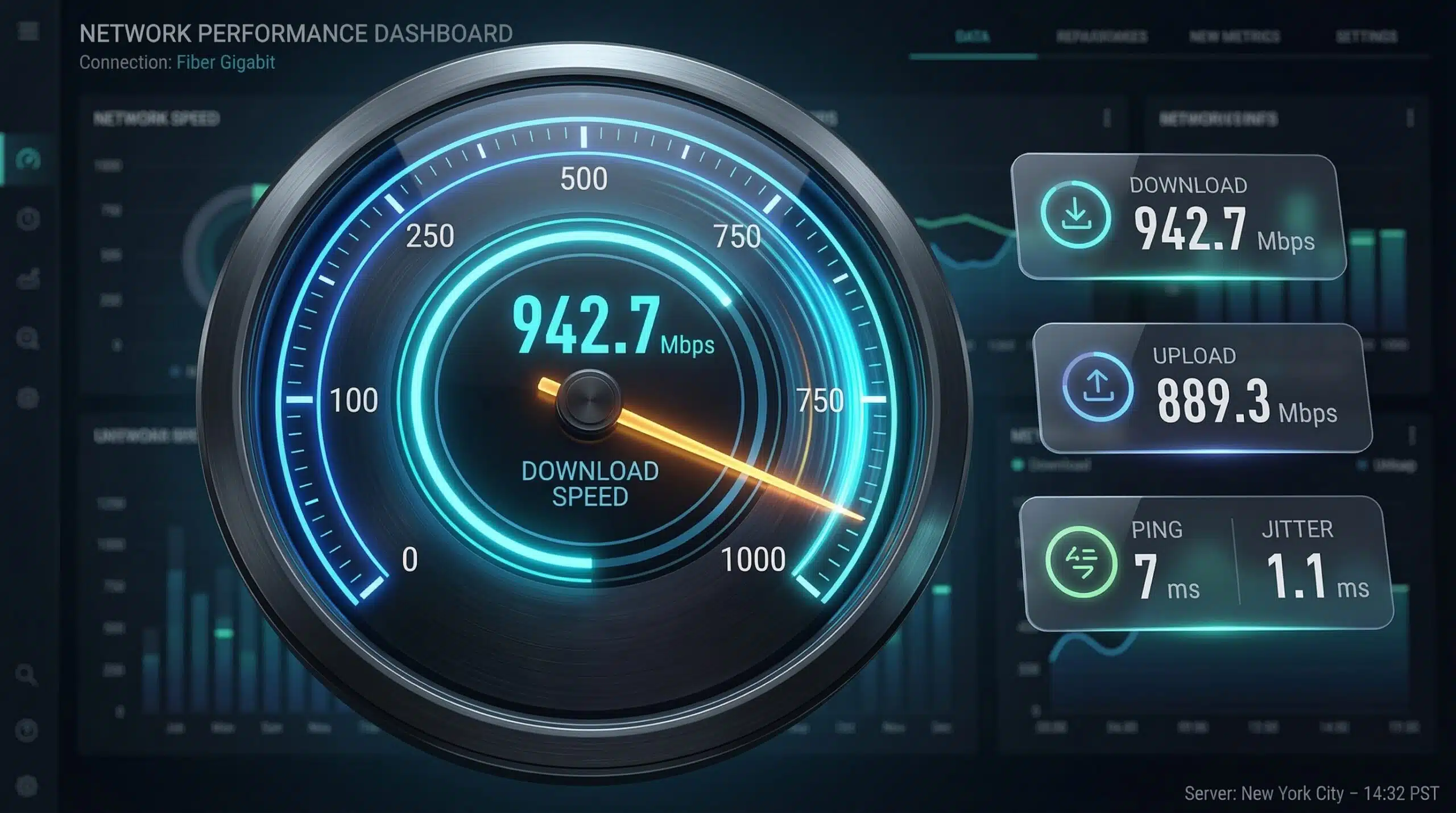
An internet speed test measures how fast data travels between your device and a test server on the internet. It reports four key metrics: download speed (Mbps), upload speed (Mbps), ping (ms), and jitter (ms). The entire test takes 20–30 seconds and requires no downloads or sign-ups. You can run ours right now at instantspeedtest.net/ — it’s completely free and works in any browser.
How a Speed Test Measures Download Speed
The test server sends a large quantity of test data to your browser while timing the transfer. To ensure your full connection bandwidth is utilized, modern speed tests use multiple simultaneous connections (typically 4–8 parallel streams). A single TCP connection has built-in congestion control that prevents it from saturating a fast connection — multiple streams bypass this limitation. The total bytes received divided by elapsed time gives your download speed in Mbps.
How Upload Speed, Ping, and Jitter Are Measured
Upload: your browser sends test data to the server using parallel connections, measured the same way as download. Ping: a small packet is sent to the server and the round-trip time is measured — this is repeated several times to get an average. Jitter: the standard deviation of those multiple ping measurements. Low standard deviation means consistent latency; high standard deviation means variable, unpredictable latency that causes real-time application problems.
Why Different Speed Tests Give Different Results
| Variable | Effect on Results |
|---|---|
| Server location | Closer server = lower ping; different results by network path |
| Server load at test time | Busy test server delivers slower measured speeds |
| ISP peering arrangements | Some ISPs have fast lanes to specific test servers |
| Time of day | Peak hours (evenings) show lower speeds due to congestion |
| WiFi vs Ethernet | Ethernet measures true connection speed; WiFi adds home network variables |
| Background app activity | Downloads/uploads consuming bandwidth during test lower results |
How to Get the Most Accurate Speed Test Result
For the truest reading of your ISP connection: connect via Ethernet directly to your modem (bypassing your router). Close all other browser tabs. Pause cloud sync apps (Dropbox, iCloud, OneDrive). Run the test three times and average the results. Test at different times of day — morning tests show maximum available speed while evening tests reveal real-world performance. Compare results across multiple sites including our test and Ookla, Fast.com, and Google to identify ISP throttling of specific destinations.
What Speed Test Results Actually Tell You
Speed test results show your maximum achievable throughput to that specific server at that moment. They don’t represent your average speed throughout the day, your speed to all servers, or your speed over time. Think of it as a snapshot. For a complete guide on interpreting what the numbers mean, see our guide on how to read speed test results. If your result is significantly below your plan, our guide on why speed tests show faster than actual downloads explains the discrepancy.
Related Guides
- How to Read Speed Test Results
- Ookla vs Fast.com vs Google Speed Test
- How to Test Internet Speed Without an App
- What Does Mbps Mean?
- Why Speed Tests Differ on Different Devices
- Speed Test Shows Faster Than Actual Downloads
Frequently Asked Questions
Do speed tests use a lot of data?
A typical test uses 100–300 MB depending on your connection speed. Fast connections (500 Mbps+) transfer more test data in the same time window, using more data. On metered mobile data plans, this is worth noting. Each test on a fast 5G connection may use 200–300 MB — worth considering if you have a limited data plan.
Are browser speed tests as accurate as apps?
Yes — browser tests use HTTP/HTTPS protocols identical to real web browsing, giving representative results. App-based tests sometimes use raw TCP protocols that produce slightly higher readings than real browser-based traffic achieves. For diagnosing real-world web performance, browser tests are actually more representative than app-based alternatives.
Why does my speed test vary so much between tests?
Server load, momentary network fluctuations, background app activity, and WiFi interference all cause test-to-test variation. Run three consecutive tests and average them for a more reliable measurement. Large variation between tests (50%+ swings) often indicates jitter or network instability worth investigating further.