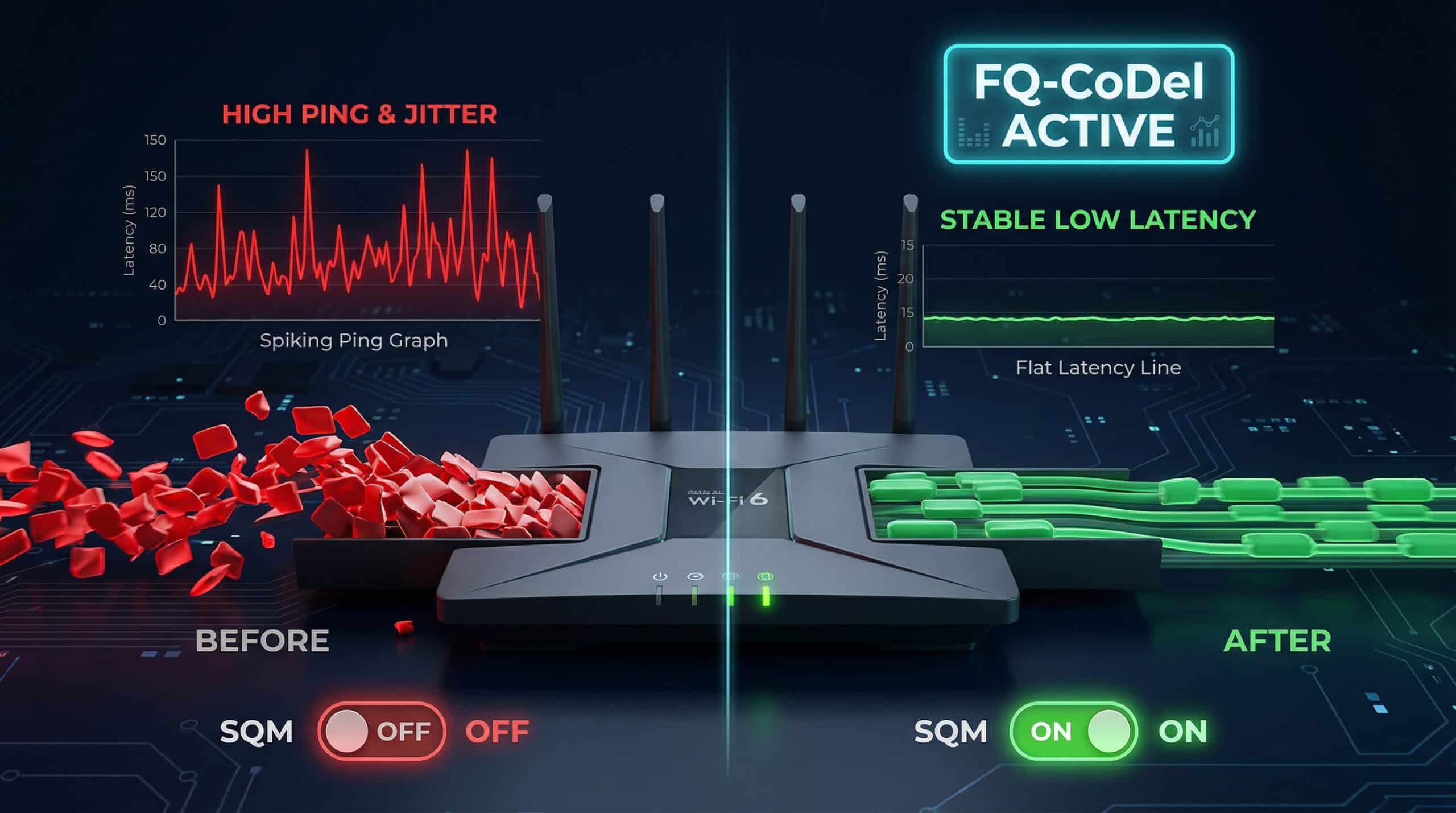
How to Fix Bufferbloat on Any Router — Step-by-Step Guide
Fixing bufferbloat is one of the highest-impact improvements you can make for gaming and video calls on any internet plan. The fix takes 5–15 minutes and is free on most routers. First, verify you have bufferbloat — test at instantspeedtest.net/ while someone streams or downloads simultaneously.
Fix Method by Router Type
| Router Type | Fix Method | Difficulty | Effectiveness |
|---|---|---|---|
| Asus (with AiMesh/Gaming) | Enable Adaptive QoS → Gaming mode | Easy | Good |
| Netgear (with Nighthawk QoS) | Enable QoS → DFS priority | Easy | Moderate |
| TP-Link (with QoS) | Advanced → QoS → Enable, set limits | Easy | Moderate |
| Any router (manual) | Cap to 90% of plan speed in QoS | Easy | Good |
| OpenWrt / DD-WRT | Enable SQM → fq_codel queue | Moderate | Excellent |
| ISP-provided gateway | Replace with your own router | Moderate | Best long-term |
The Most Effective Fix — SQM with FQ-CoDel on OpenWrt
For routers supporting OpenWrt firmware, enable SQM (Smart Queue Management) with the fq_codel queue discipline. Navigate to Network → SQM QoS → enable on your WAN interface, set download and upload to 95% of your plan speeds (this prevents queue saturation), and select fq_codel as the queue discipline. This produces consistent Grade A bufferbloat results — gaming ping stays flat even when the household is downloading at full speed. OpenWrt supports a wide range of consumer routers including Linksys WRT series, TP-Link Archer series, and Netgear R7000. See our bufferbloat explainer for background.
Related Guides
- What Is Bufferbloat?
- How to Improve Ping for Gaming
- Does a Router Affect Internet Speed?
- How to Speed Up a Slow Router
- Why Is Ping High at Night?
- Jitter vs Ping for Gaming
Frequently Asked Questions
Does enabling QoS slow overall internet speed?
Properly configured QoS reduces maximum throughput by a small amount (5–10%) because the router CPU must process each packet to classify and prioritize it. However, for most home users, this tradeoff is completely worth it — a 5% speed reduction in exchange for gaming ping that stays consistent under load is a clear win. High-end routers with hardware QoS acceleration (like Asus GT-AX11000) implement QoS with near-zero throughput impact.
I enabled QoS but bufferbloat is still bad — what now?
Most consumer QoS settings don’t implement true AQM (Active Queue Management). Try the manual cap method: set your upload limit to 90% of your plan upload speed. This prevents the upload queue from ever fully saturating, eliminating most bufferbloat without needing advanced firmware. If this doesn’t help, the router itself may have a shallow hardware queue that requires a firmware like OpenWrt to properly address.