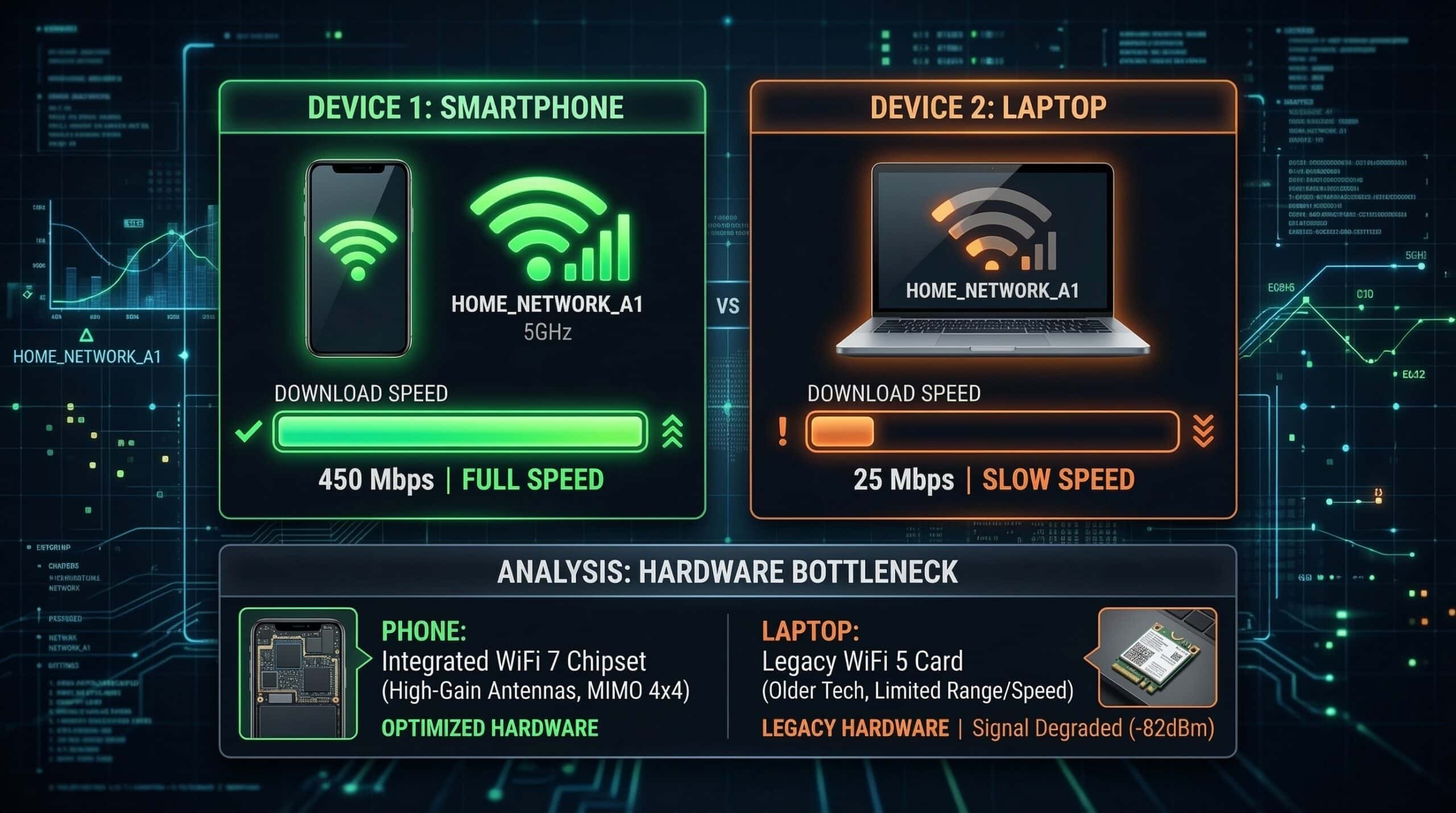
WiFi Slow on Laptop But Fast on Phone — Causes and Fixes
Your phone shows 200 Mbps on our speed test at instantspeedtest.net/ but your laptop shows 40 Mbps on the same network. This common problem has specific hardware and software causes — almost all fixable without buying new equipment.
Top Causes — Laptop Slow, Phone Fast
| Cause | How to Verify | Fix |
|---|---|---|
| Laptop on 2.4 GHz, phone on 5 GHz | Check network name in WiFi settings | Connect laptop to 5 GHz network |
| Outdated WiFi driver | Device Manager → Network Adapters | Update or reinstall WiFi driver |
| Older WiFi adapter hardware | Check adapter specs (WiFi 4 vs WiFi 5/6) | USB WiFi 6 adapter ($25–50) |
| Power-saving mode limiting adapter | Device Manager → adapter Power Management | Disable “allow device to sleep” setting |
| Background processes consuming bandwidth | Task Manager → Network column | Close bandwidth-heavy background apps |
| Windows metered connection | Settings → WiFi → network properties | Toggle off metered connection |
| Antivirus scanning traffic | Disable AV temporarily; retest | Whitelist browser; update AV |
The Band Mismatch — Most Common Culprit
Phones aggressively prefer 5 GHz WiFi because their firmware is optimized for performance. Windows laptops often fall back to 2.4 GHz for stability, especially with older or generic WiFi drivers. On 2.4 GHz at moderate distance, your laptop may only achieve 60–100 Mbps. Your phone on 5 GHz achieves 200–400 Mbps from the same location. The fix: open WiFi settings, find the 5 GHz version of your network (often labeled “NetworkName_5G” or “NetworkName-5”), and connect to it. If your router uses Smart Connect (same name for both bands), try temporarily giving bands different names to test the theory. See our 2.4 vs 5 GHz WiFi guide for the full explanation.
Related Guides
- 2.4 GHz vs 5 GHz WiFi
- Internet Slow Only on One Device
- How to Fix Slow Internet on Windows 11
- Why Speed Tests Differ on Different Devices
- Wired vs Wireless Internet Speed
- WiFi 6 vs WiFi 5
Frequently Asked Questions
How do I update my laptop’s WiFi driver?
On Windows: right-click Start → Device Manager → Network Adapters → right-click your WiFi adapter → Update Driver → Search automatically. For the most current driver, visit the laptop manufacturer’s support page (Dell, HP, Lenovo, ASUS, etc.) and download the latest driver package for your model. Intel WiFi cards can also be updated directly via Intel’s Driver Support Assistant tool.
Should I buy a USB WiFi adapter for my laptop?
If your laptop has an old WiFi 4 or WiFi 5 adapter and you’re seeing significantly lower speeds than other devices, a USB WiFi 6 or 6E adapter ($25–50) can provide an immediate speed improvement. The external adapter bypasses the internal adapter entirely. Look for an adapter with external antennas for best performance. Ensure your router supports the WiFi version you’re upgrading to.
My laptop is faster on Ethernet than WiFi — is that normal?
Yes — Ethernet is consistently faster and more stable than WiFi on the same network. See our wired vs wireless comparison for full details. If your WiFi speed is dramatically lower (less than 50% of Ethernet), a driver update or band change will likely bring it closer to parity. Some gap between Ethernet and WiFi is always expected and normal.